
This description refers to the previous version of the application – the screens may look different from the current ones.
Ways to view the vehicle's route
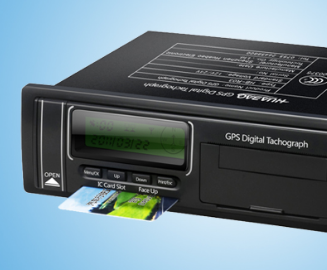 The remote DDD file download function is extremely useful. Company vehicles often do not return to base for many weeks, meaning fleet managers may not have access to driver card data. The remote data download function from the tachograph memory and driver cards is therefore highly beneficial. Please note that only the "Monitoring CAN Plus Tacho" kit provides this feature.
To be able to download data from a digital tachograph, you must have:
- A digital tachograph installed with the remote file download function enabled
- An S8.5 GPS tracker correctly connected to the tachograph
- A company card reader at the company headquarters
- The "TachoCardAuthorizer" application at the company headquarters
- Java software installed at the company headquarters
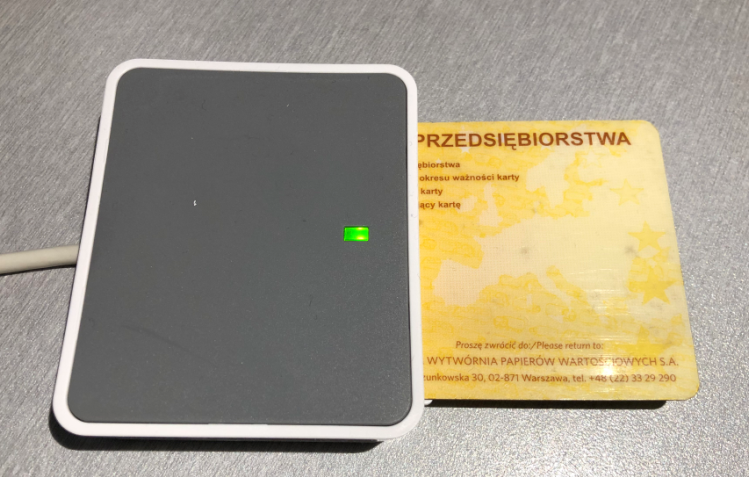 Local computer configuration
On the local computer used to download DDD files, you should:
- Connect the company card reader to a USB port and install the appropriate driver so that the device is visible in Windows
- Install Java software if it has not been installed previously
- Copy the "TachoCardAuthorizer" programme files to a chosen directory
- Navigate to the TachoCardAuthorizer programme directory
- Run the TachoCardAuthorizer programme using the run.bat command
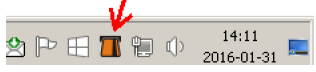
The TachoCardAuthorizer application icon should appear in the Windows system tray. The application uses this icon (colour) to indicate its status.
After launching TachoCardAuthorizer, the initial login window will appear
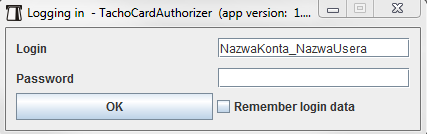
Here you should enter:
Login: AccountName_UserName*
Password: UserPassword*
Explanation:
*AccountName – this is the account name on the GPS monitoring server
*"_" – this is the underscore character
*UserName – this is the username who will download data from the tachograph, matching the user details in the GPS monitoring system
*UserPassword – this is the password for that user, matching the password in the GPS monitoring system
Next, tick "Remember login data" to allow the data to be stored locally. You will not need to re-enter it.
Now insert the company card into the reader. If all steps have been completed correctly, the TachoCardAuthorizer programme icon should turn green.
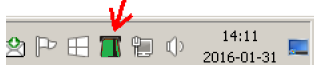
If this is not the case, please correct the login details or card reader installation.
Downloading files from the tachograph:
Log in to the Monitoring-GPS.net system using the same login and password as entered in TachoCardAuthorizer. Then proceed to:
Menu > Events > Tachograph > Tachograph commands (Menu > Zdarzenia > Tachograf > Polecenia dla tachografu)
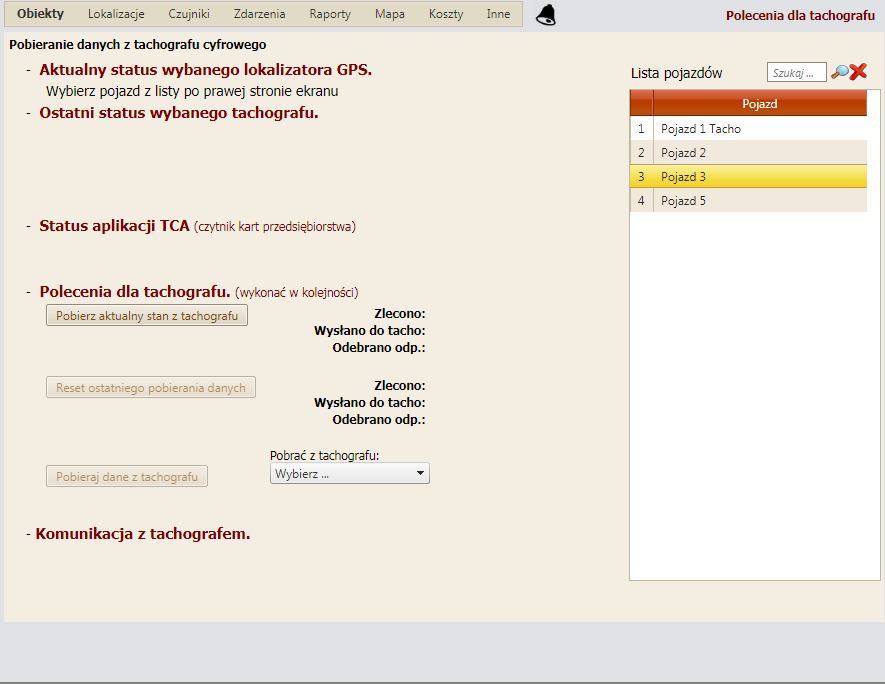
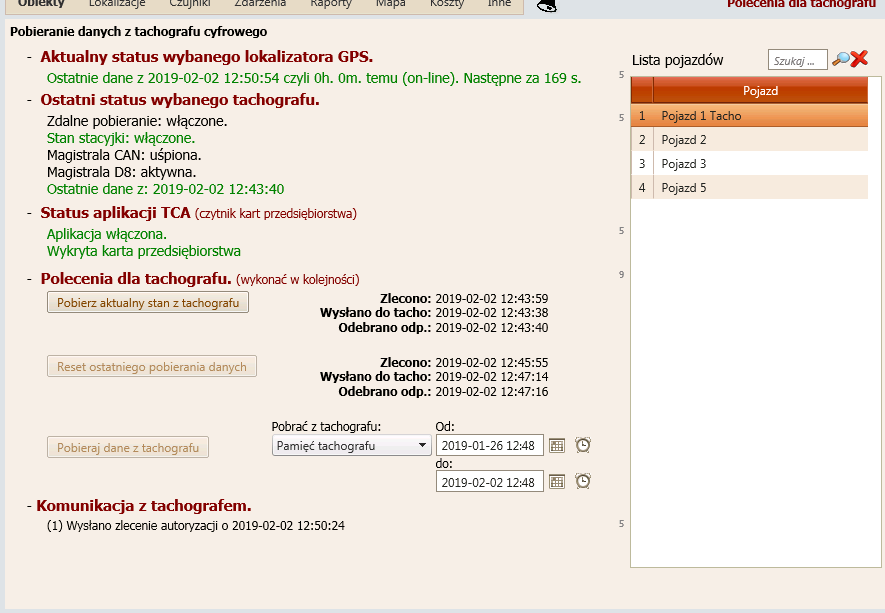
Next, select on the right the vehicle from which DDD files will be downloaded. After this operation, a screen will appear showing the current status of the data download system.
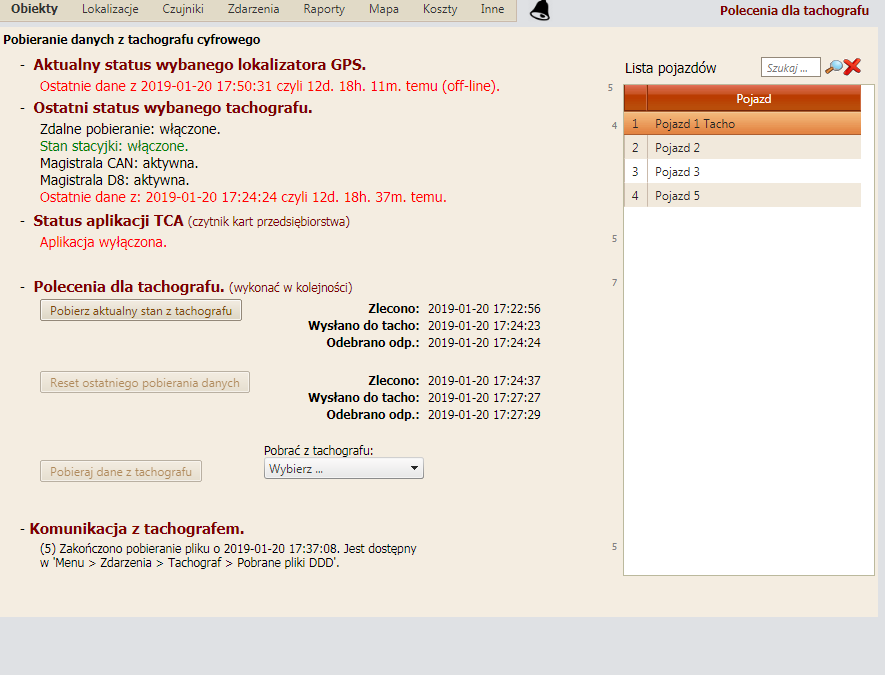
This consists of several sections:
- Current tracker status
- Current tachograph status
- Current TachoCardAuthorizer (TCA) application status
- Communication with the tachograph
To be able to download data from the tachograph, all messages must be green before starting the download.
The first step is to check whether the GPS tracker is online (green) and whether the TCA application status is also green. The second step is to issue the "Get current tachograph status" ("Pobierz aktualny stan tachografu") command. After issuing it, wait for the tracker’s response. It is important that the ignition status is green. This display will always appear when the ignition is on (in a vehicle with a tachograph).
Now, when all messages are green, proceed to the command: "Reset last download" ("Reset ostatniego pobierania"). Once this is done and a positive response is received, the application is ready to download the DDD file.
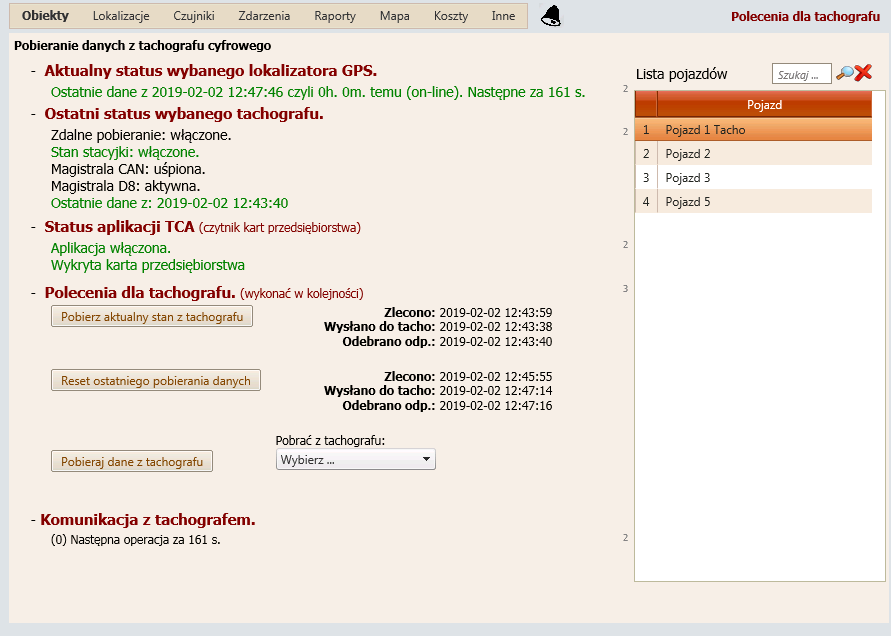
Now select what you wish to download from the tachograph and issue the "Download data from tachograph" ("Pobieraj dane z tachografu") command. From this point, the process will be carried out automatically. Please wait until it is complete. The authorisation request will be sent first.
Then the DDD file download will begin.
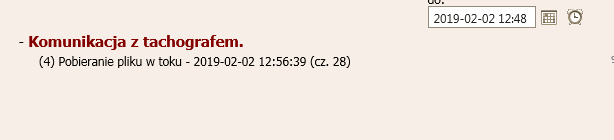
All stages of this process will display their status at the bottom of the screen. Once the file has been downloaded correctly, a message will be displayed.
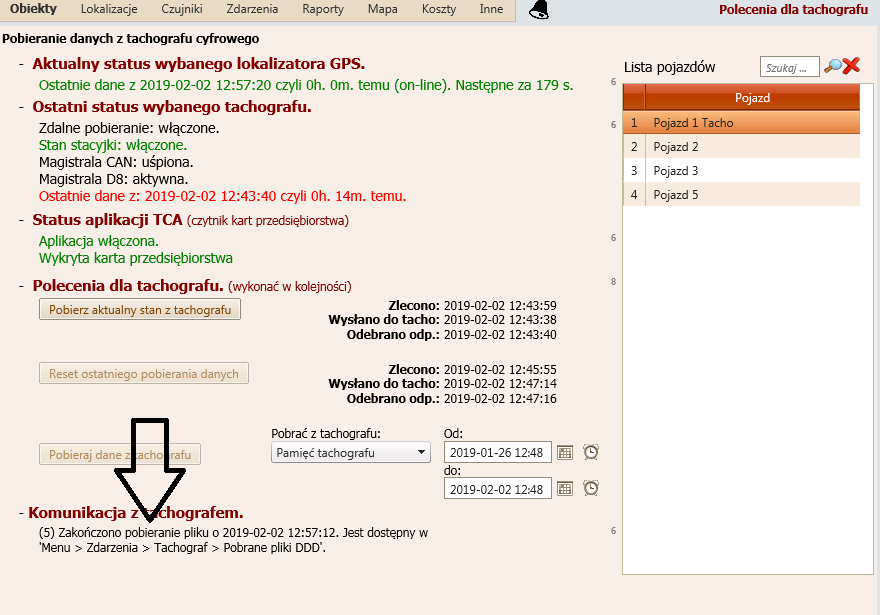
This means the download is complete.
Now go to:
Menu > Events > Tachograph > Downloaded DDD files (Menu > Zdarzenia > Tachograf > Pobrane pliki DDD)
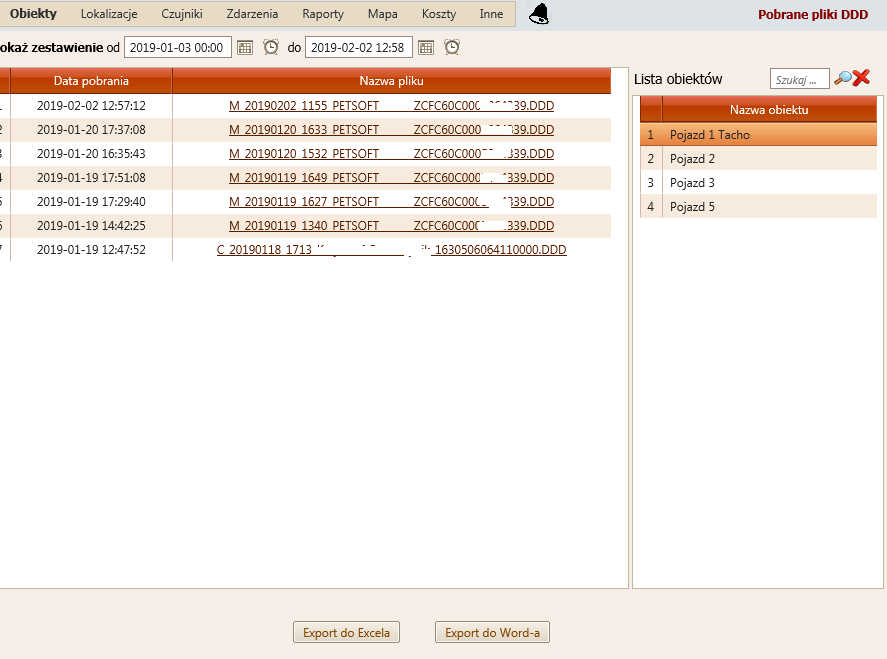
There, after selecting the vehicle, the DDD files will appear in the list for download to your local computer.