Fleet monitoring systems equipped with the remote data download function connect to the vehicle via the network, allowing regular downloads of DDD files from both the driver card and the tachograph memory.
Our CAN Plus Tacho and CAN E Tacho kits provide this functionality.
To download DDD files from the tachograph, you must first log in to the monitoring system using your login and password. Once successfully logged in, the user gains access to the fleet management panel.
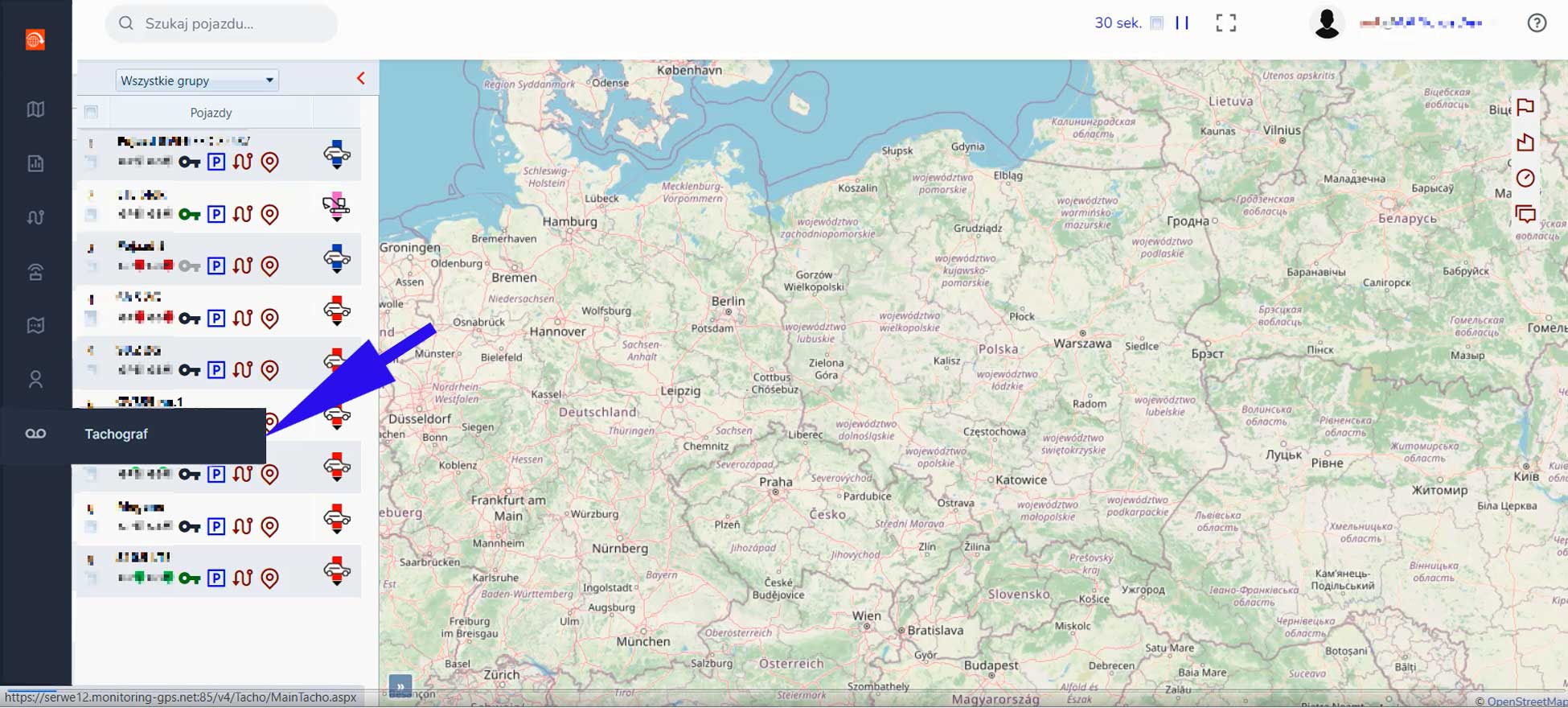
Next, from the navigation bar on the left, select the "Tachograph" ("Tachograf") tab.
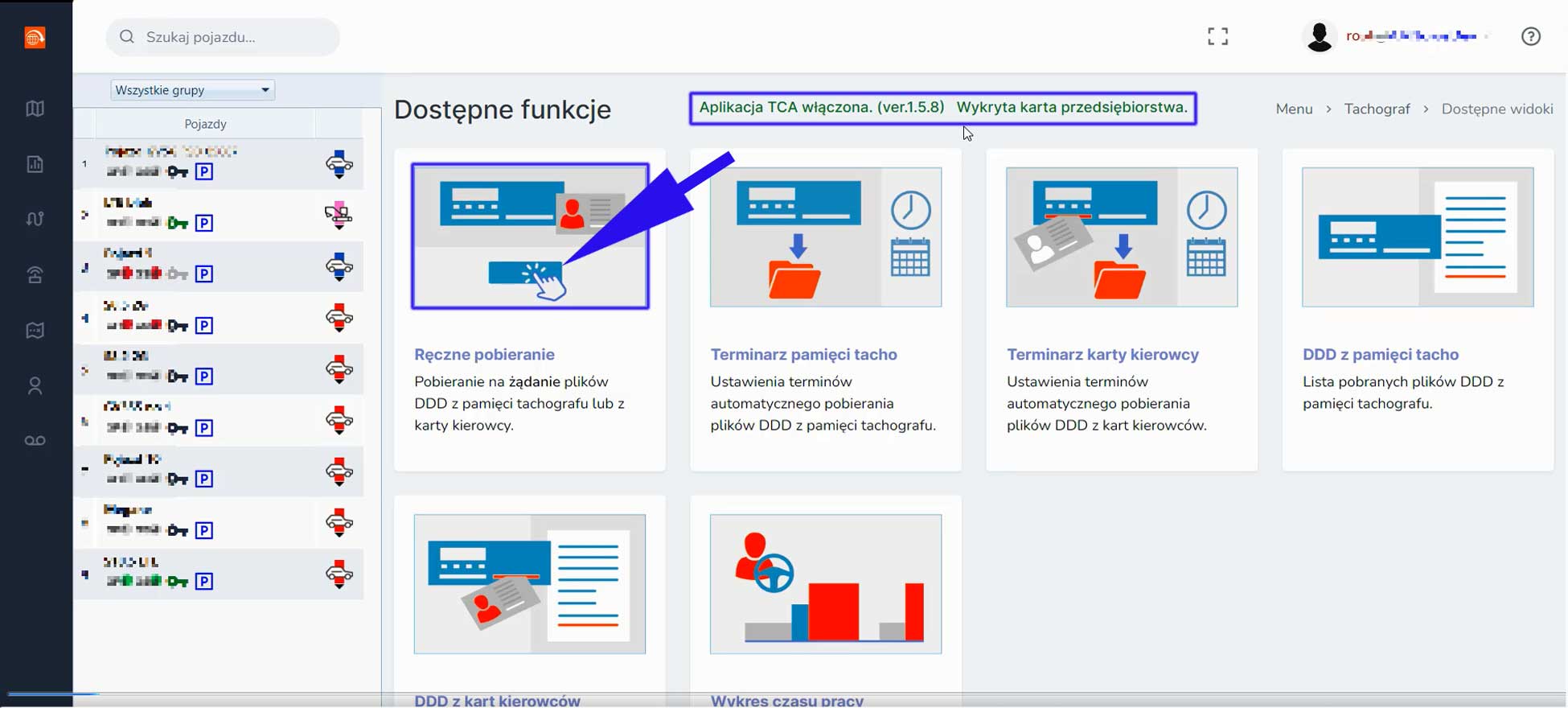
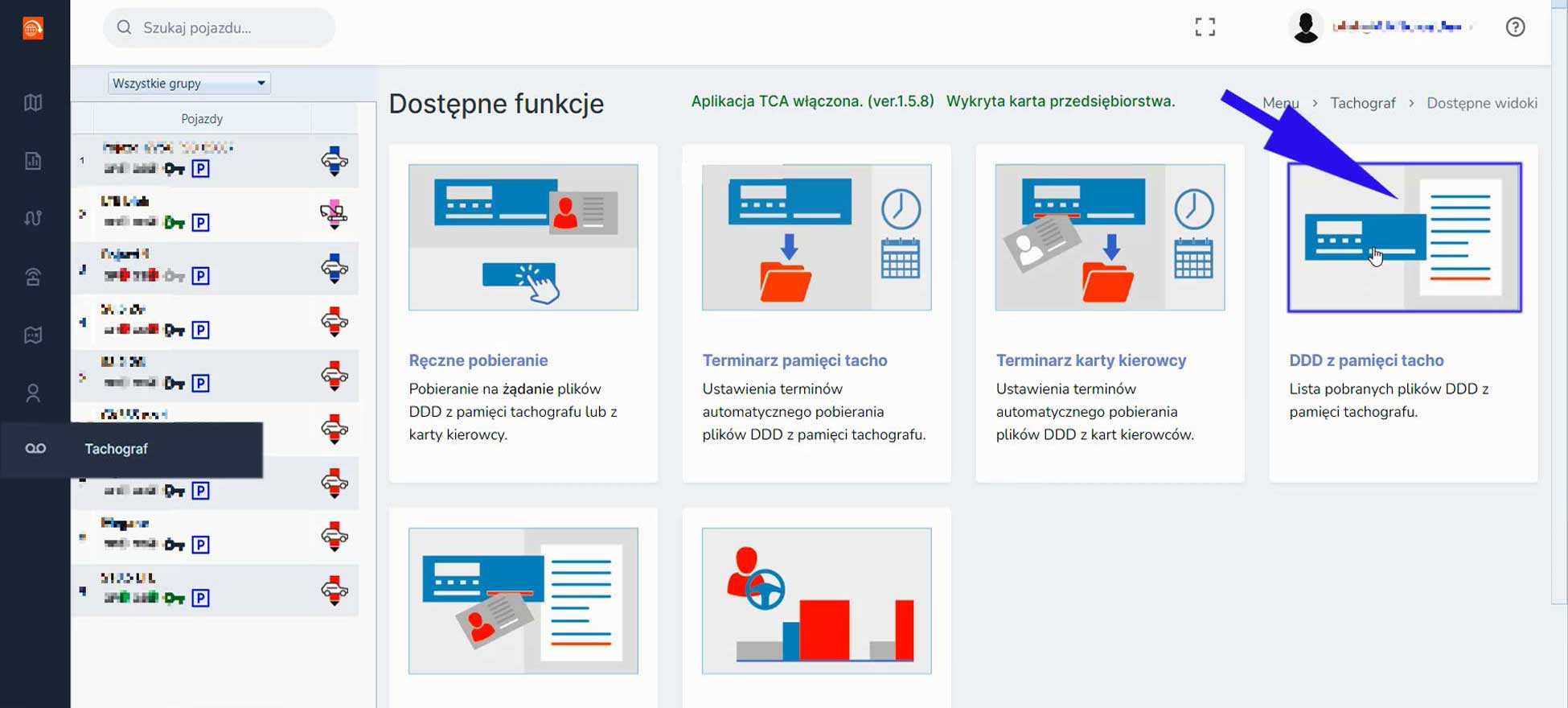
Check whether the TCA application is enabled and the company card is detected. The notification should be displayed in green. Then click the "Manual download" ("Ręczne pobieranie") tile.
Now select the driver with the driver card in the tachograph.
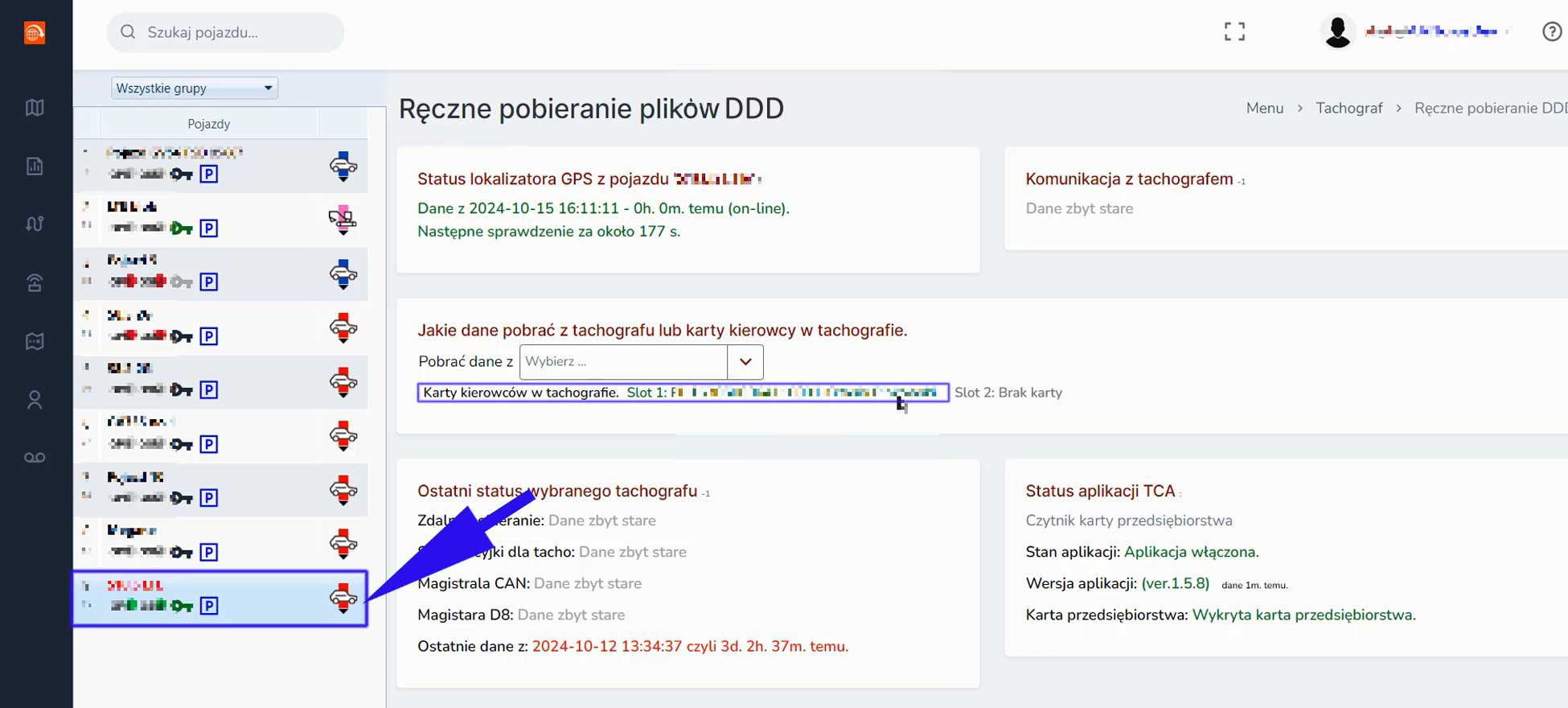
Next, proceed to manually download the DDD files.
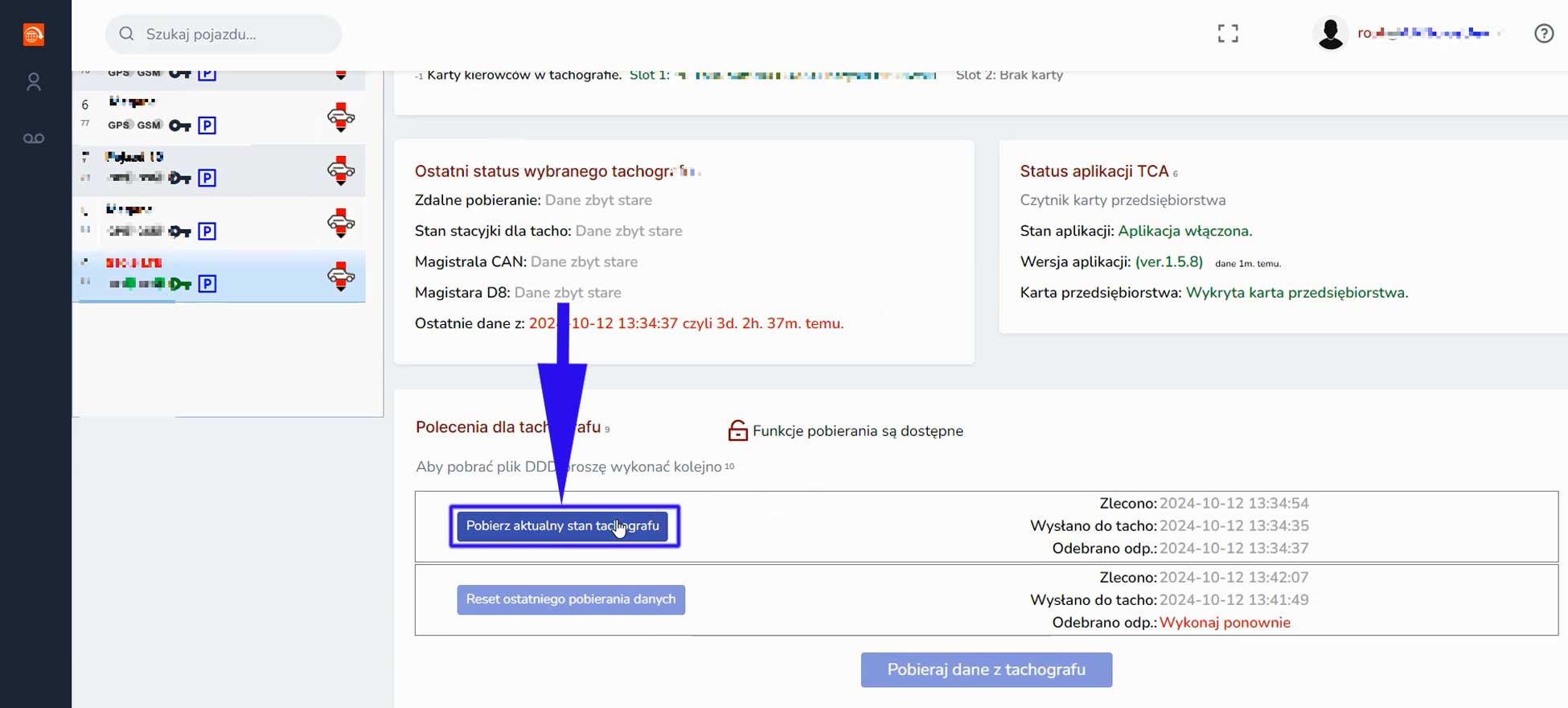
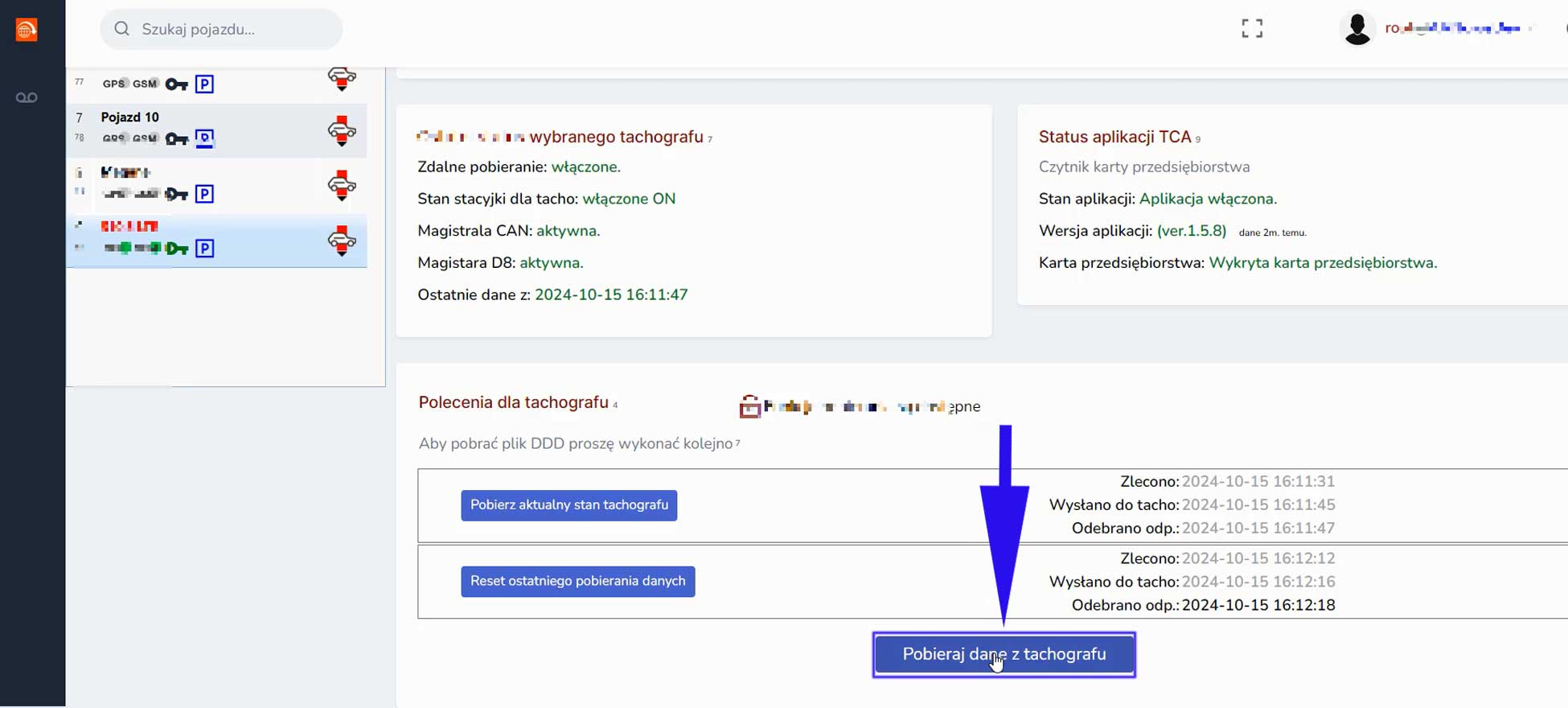
Scroll down the page and select the "Download current tachograph status" ("Pobierz aktualny stan tachografu") button. Now download the current status of the tachograph.
After selecting it, wait for a response from the tracker.
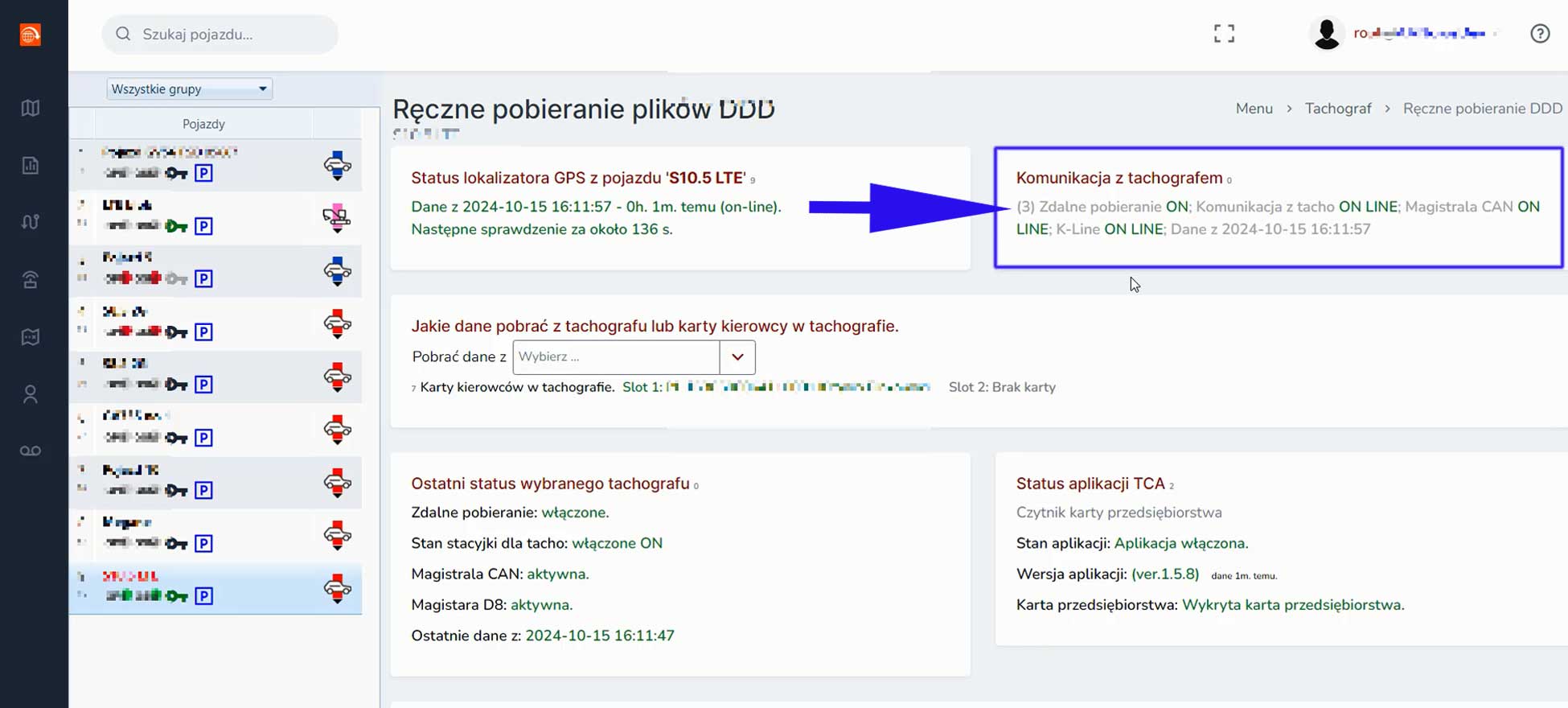
At the top of the screen, in the "Communication with tachograph" ("Komunikacja z tachografem") section, check the current status of the tachograph. It is important that the ignition status is displayed in green. This display will always appear when the ignition is switched on in the selected vehicle with a tachograph. All displayed messages are in green, and the ignition is online. At this point, you can perform a reset of the last download to reset the tachograph.
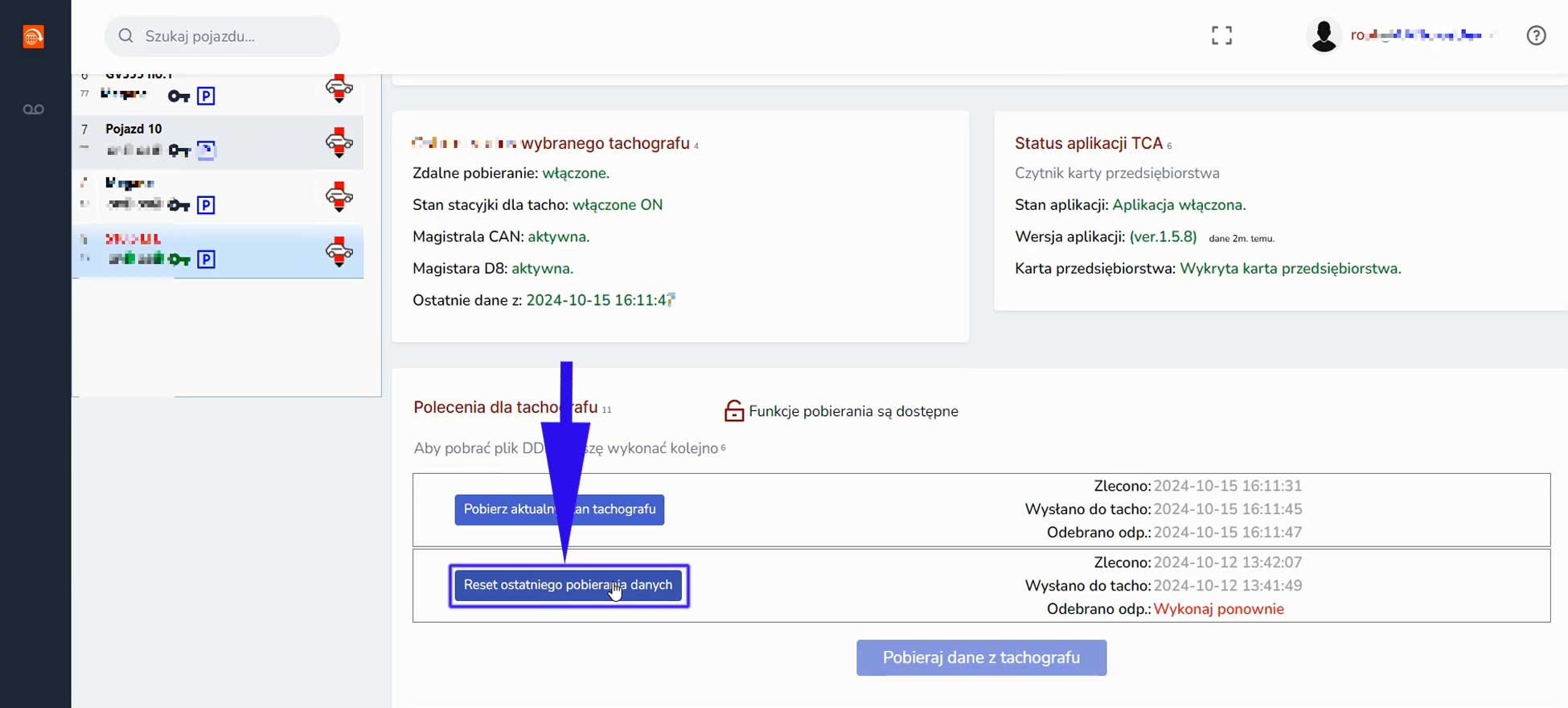
Scroll down the page. Click the "Reset last data download" ("Reset ostatniego pobierania danych") button. Wait for a response.
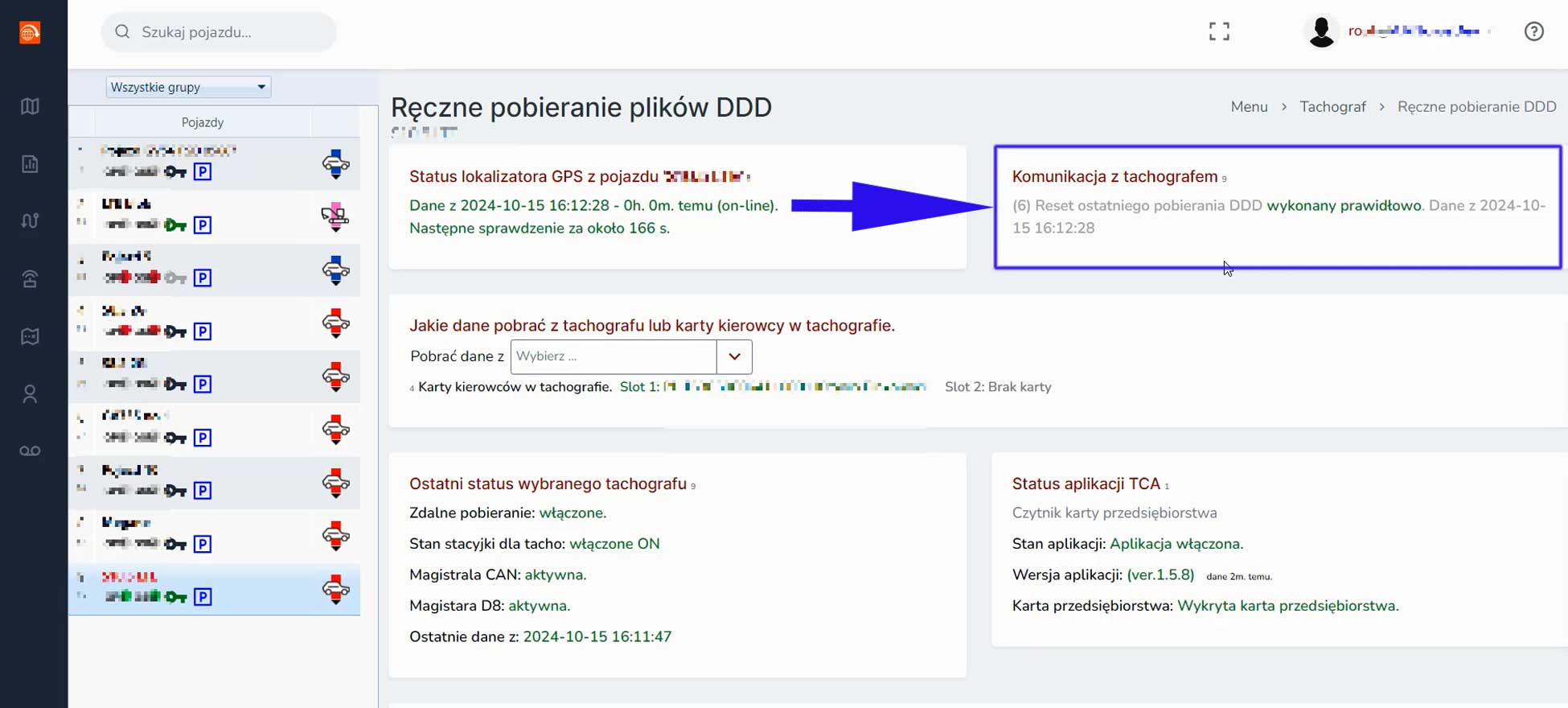
Return to the top of the page.
You will receive a response from the tachograph. The reset has been completed successfully, and the messages are displayed in green.
At this point, you can choose which data you wish to download.
You can download the tachograph memory or information from the driver card. In this example, we select the tachograph memory.
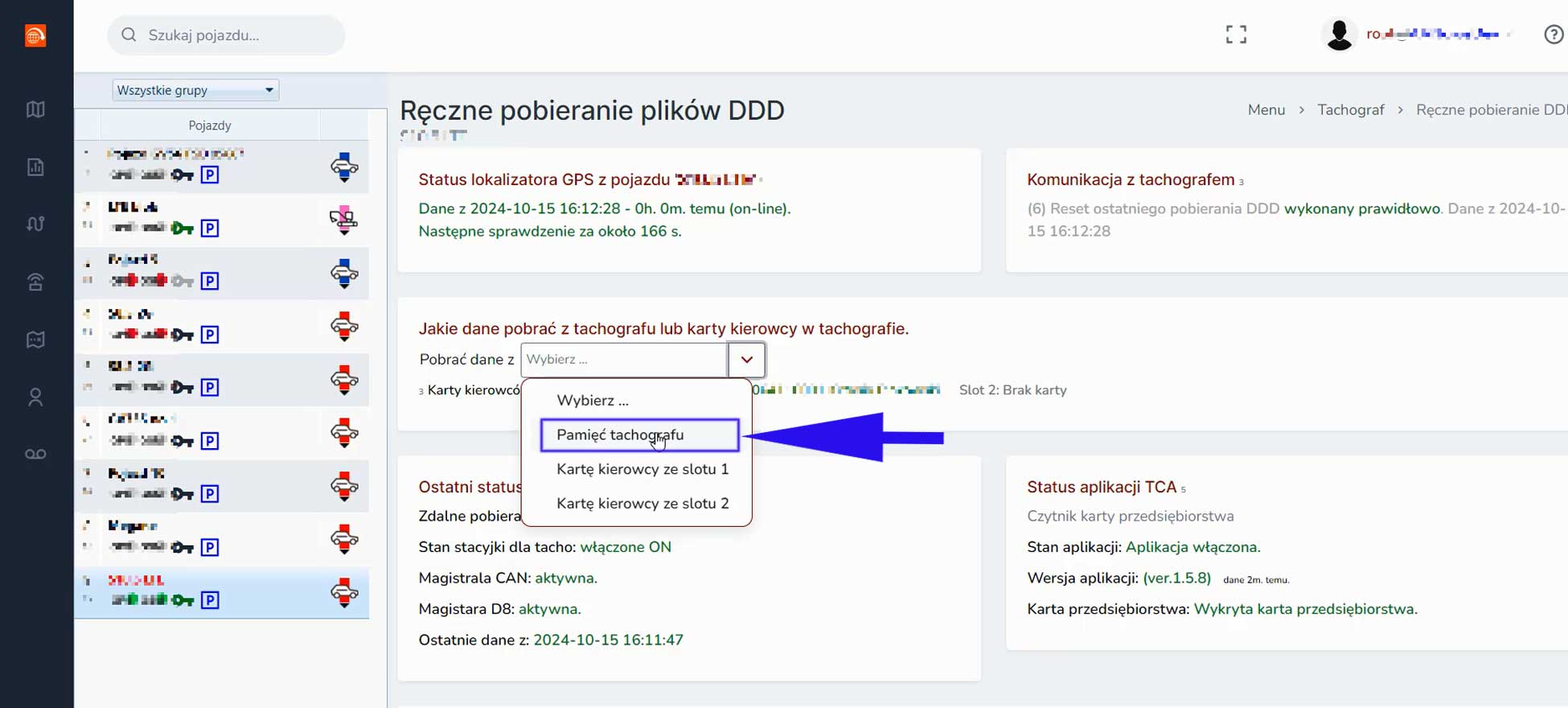
Once you have made this selection, date selection windows will appear. You can now set the date range.
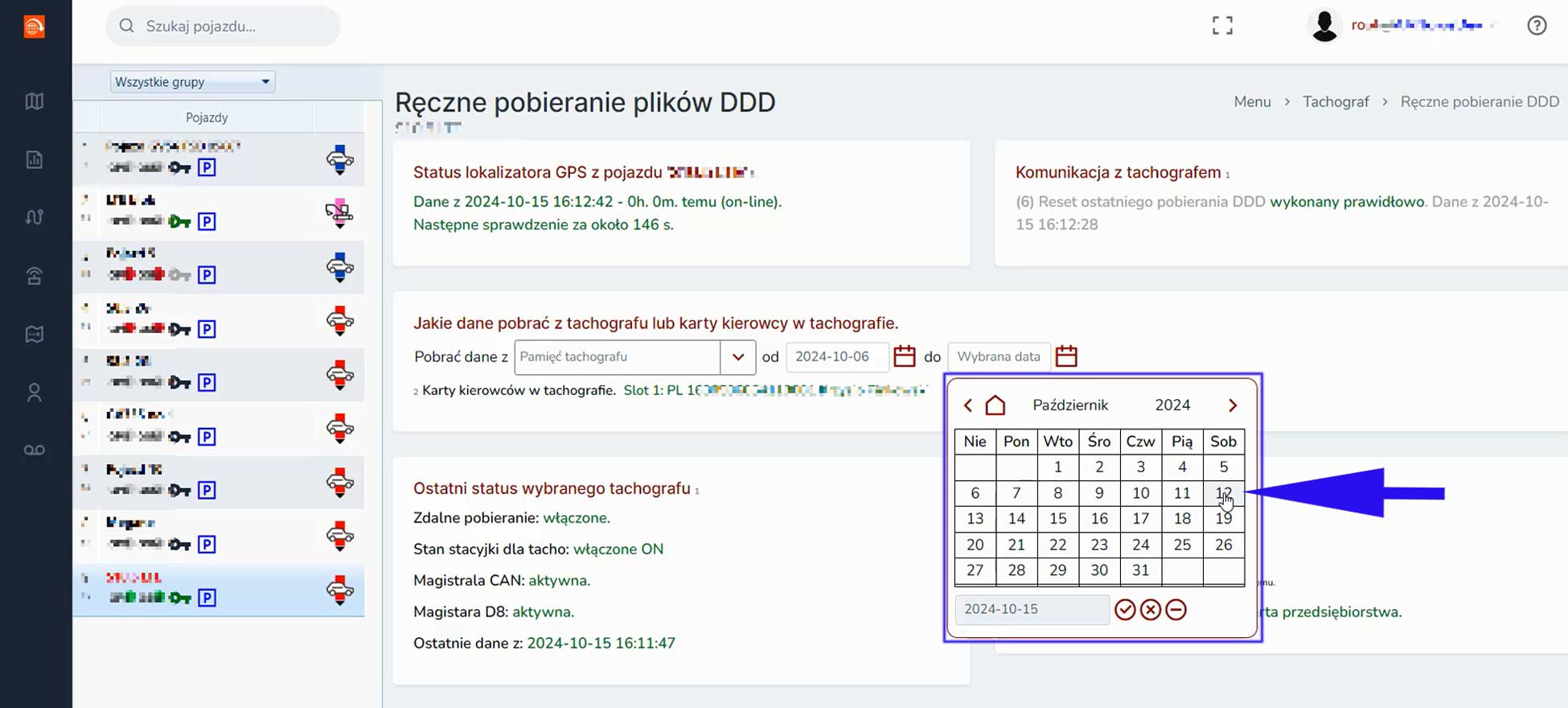
Click the "Download data from tachograph" ("Pobieraj dane z tachografu") button.
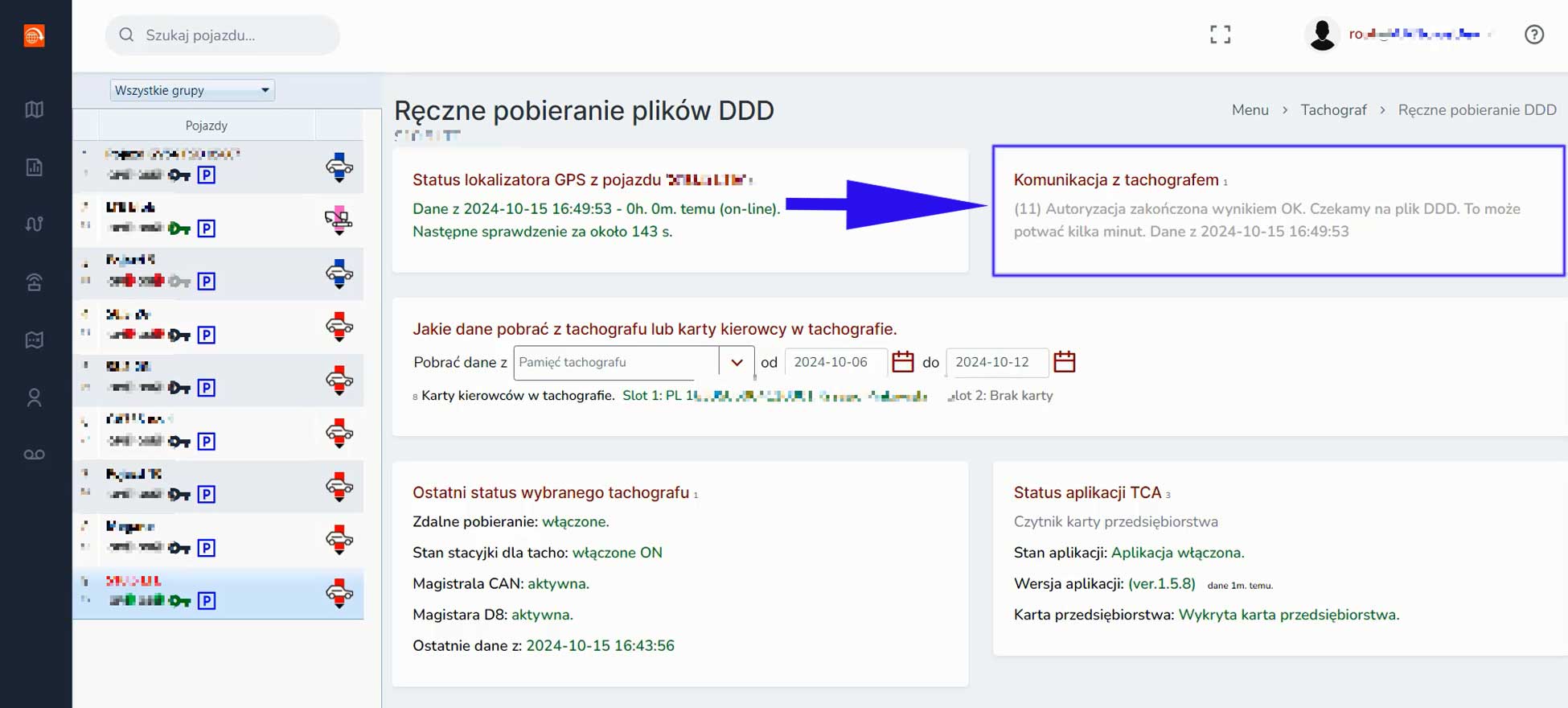
The process of company card authorisation now begins, which is in the card reader at the company. This information is sent by the TCA programme to the tracker and to the tachograph.
Authorisation requires the exchange of information between the tracker, tachograph, and company card.
Authorisation takes place. Once all packets have been sent, authorisation is complete. Now wait for the DDD files to be transferred. Once the process is complete, the file is downloaded and available in the system.
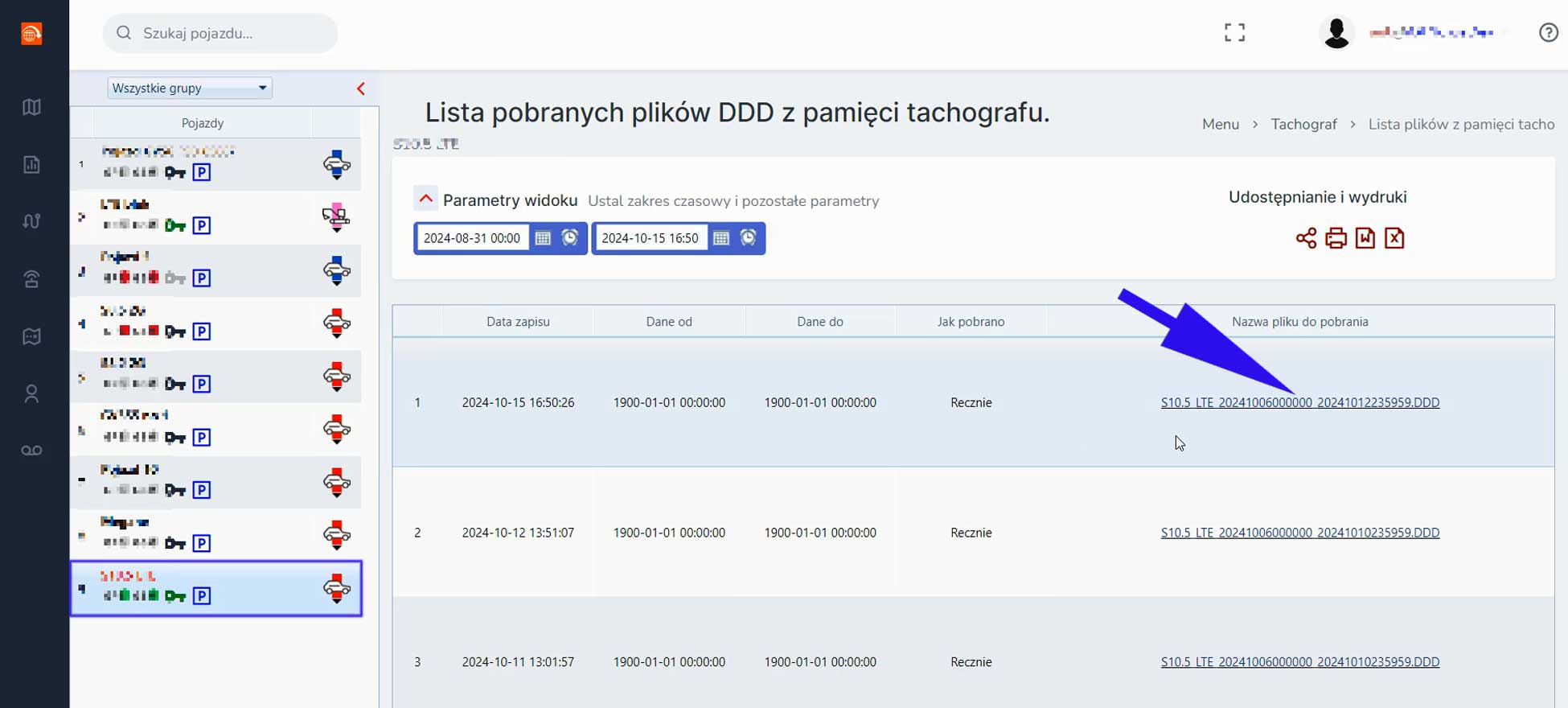
From the left side of the list, select the "Tachograph" ("Tachograf") tab, then click the "DDD from tacho memory" ("DDD z pamięci tacho") tile and go to the list of downloaded DDD files.
Select the driver whose card data you have generated. A link is available for download.