
This description refers to the previous version of the application – the screens may look different from the current ones.
How to change them to maintain data clarity
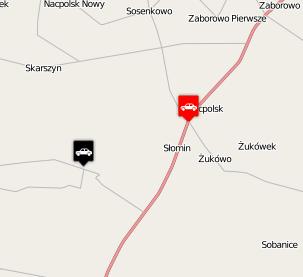 A vehicle fleet sometimes consists of many vehicles. To ensure the data stored in our databases remains clear, this needs to be taken care of. Of course, if a company has only one or two vehicles, this is not necessary. However, with a larger number of vehicles, certain configuration steps are essential. Each object has the following attributes:
- Description
- Name
- Icon
- Status (active/inactive)
To begin configuring the information and status described here, you need to log in to the monitoring system.
Menu > Objects > Vehicle list
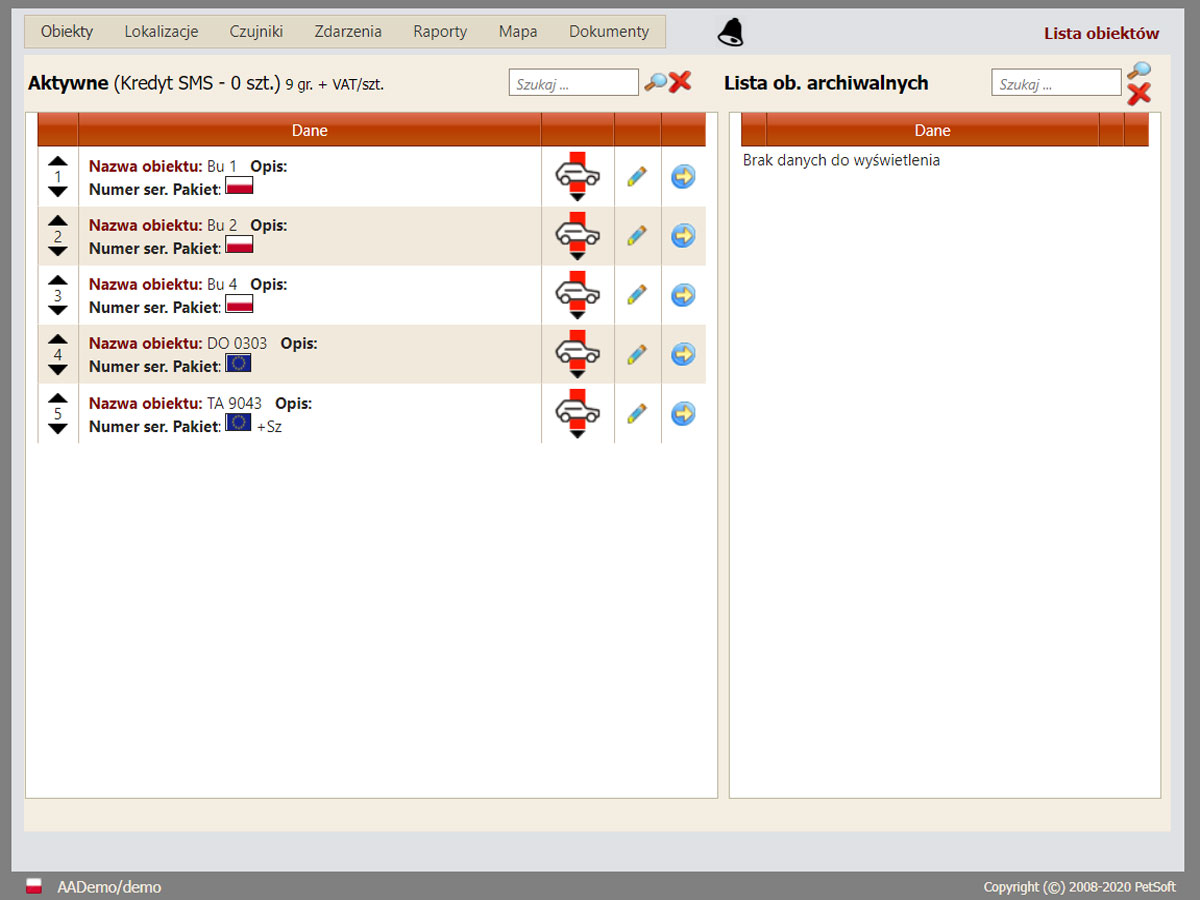
The appearance of the object list page is shown below.
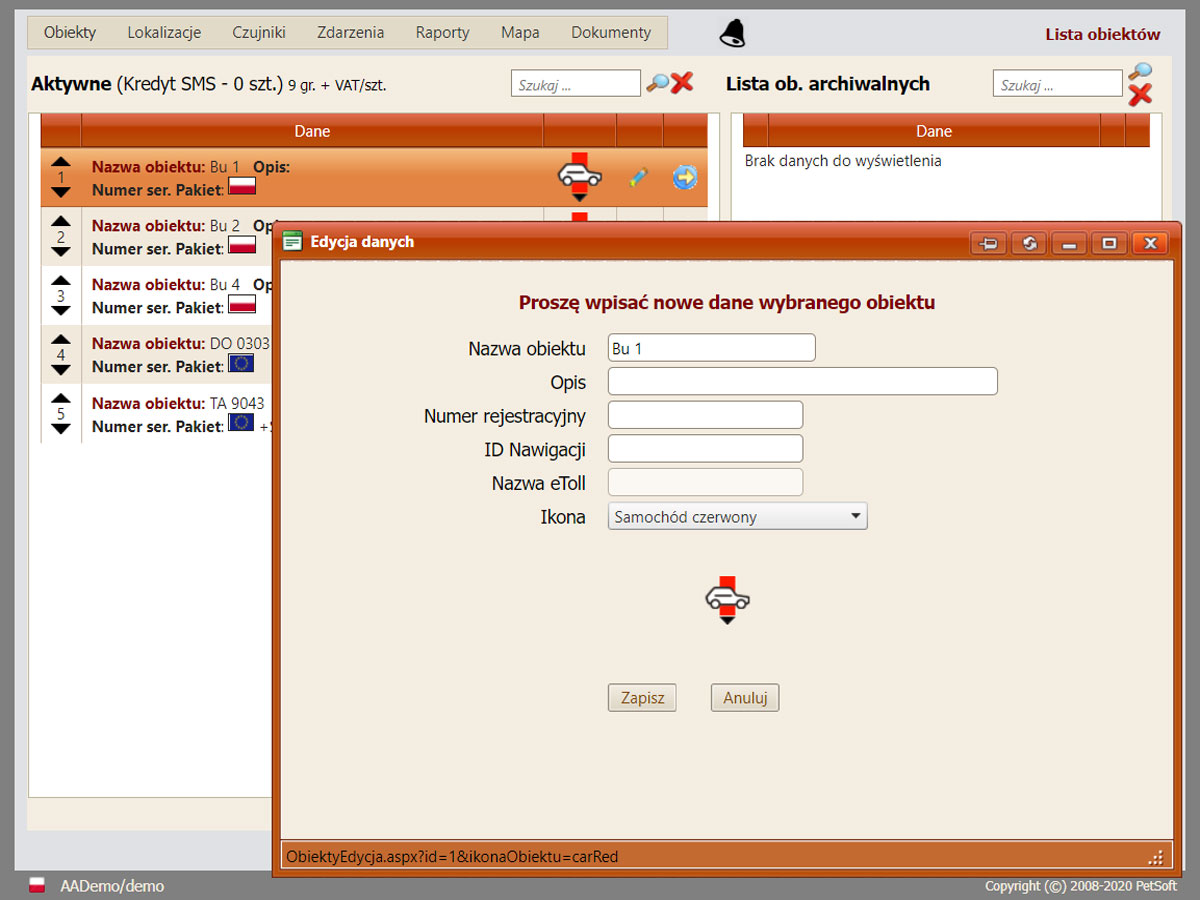
 an editing window will appear. In this window, you can enter data relating to the object's description. This is the data that will be displayed in the lists in our programme. You can also change the icon assigned to the object. This, in turn, will be displayed on maps and in the object lists.
 move to archive list
 restore
They move objects from the active list to the archive list and vice versa. Objects on the archive list are not displayed, but remain in the lists throughout the programme. This is intended to temporarily deactivate GPS trackers or vehicles that are out of service.