How does the access system for GPS monitoring work, i.e. the "Users" ("Użytkownicy") function? Our monitoring system offers a user management option, which allows you to grant access to the platform with different levels of permissions. This enables the administrator to control which features and data are available to individual users.
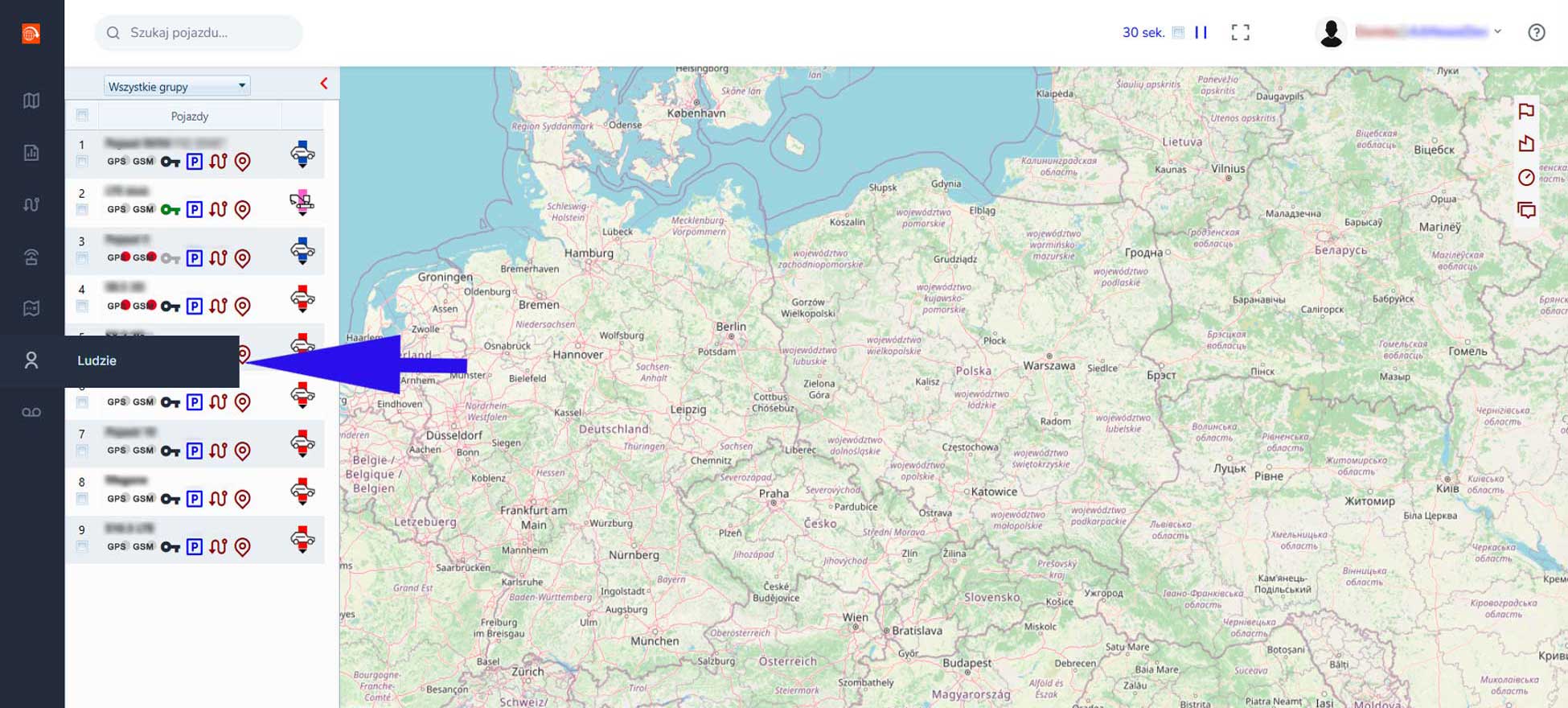
To use the "Users" ("Użytkownicy") function, you must first log in and select the "People" ("Ludzie") tab.
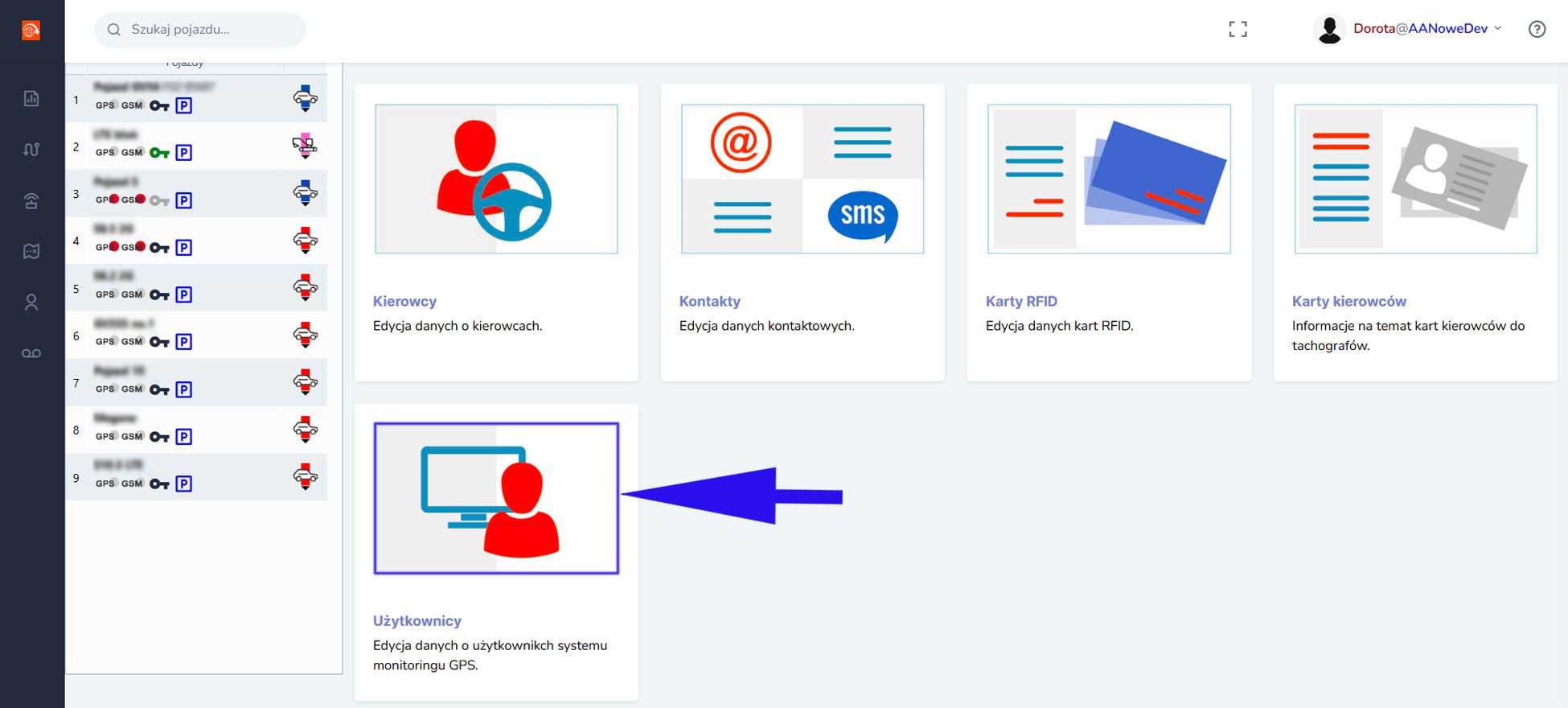
Next, click on the "Users" ("Użytkownicy") tile.
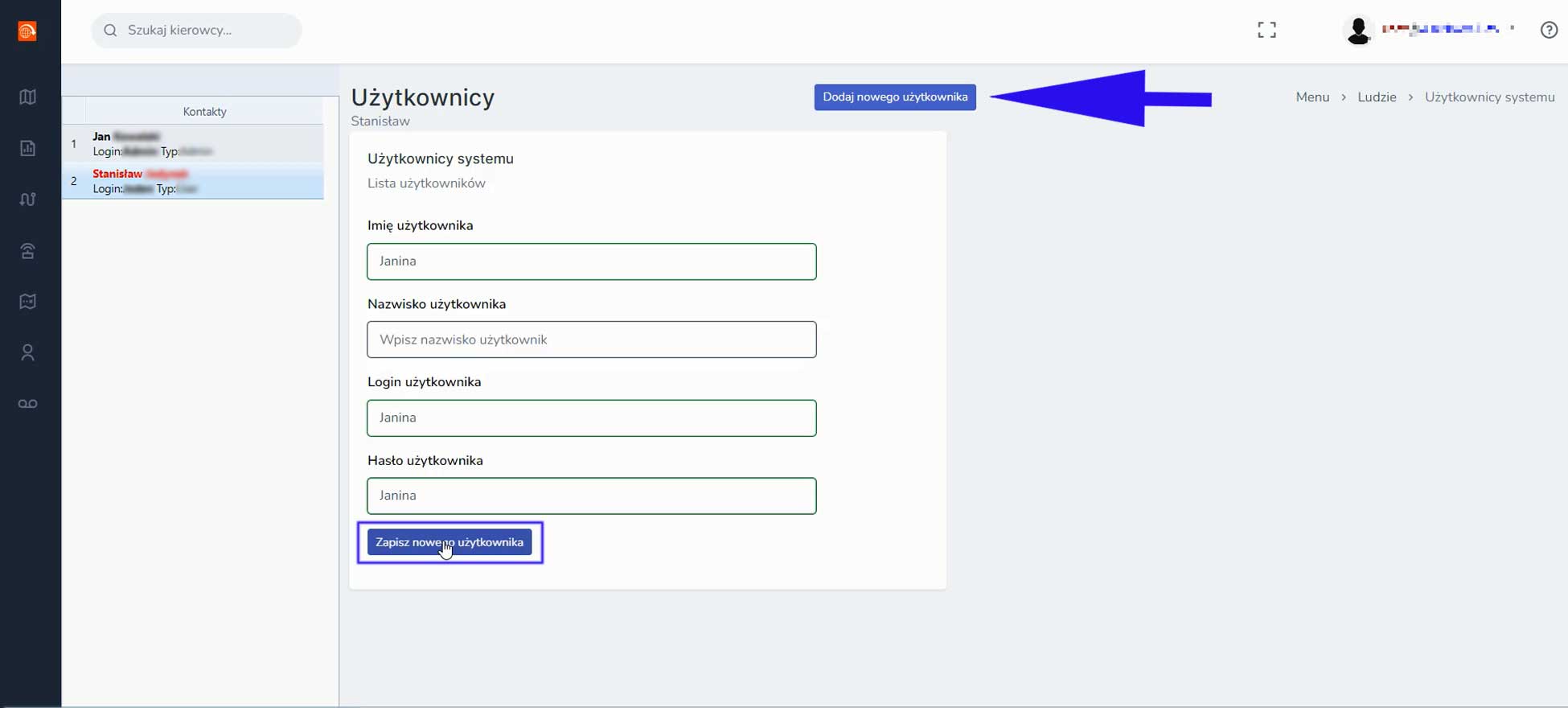
You can now add a new User. Click the "Add new User" ("Dodaj nowego Użytkownika") button, then fill in the fields. Enter the User's first and last name, then the login and password. Next, save the data.
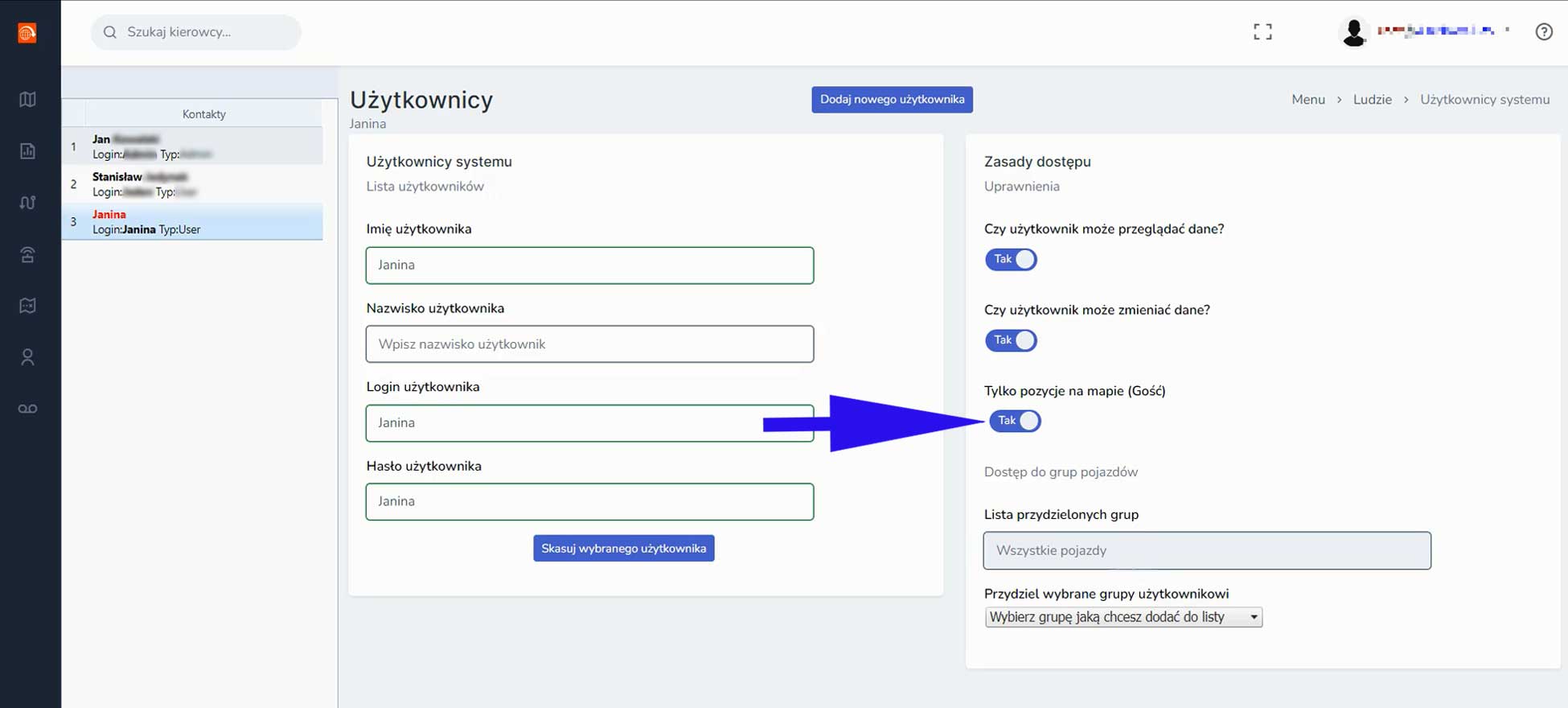
On the list on the left, you will see a new entry with the User you have added. Click on the line with the new User, and on the right you will see the scope of that User's permissions. By default, they can view and modify data. Additionally, at the bottom of the "assigned groups list", you can see that they have access to all vehicles. They also have access to the full menu.
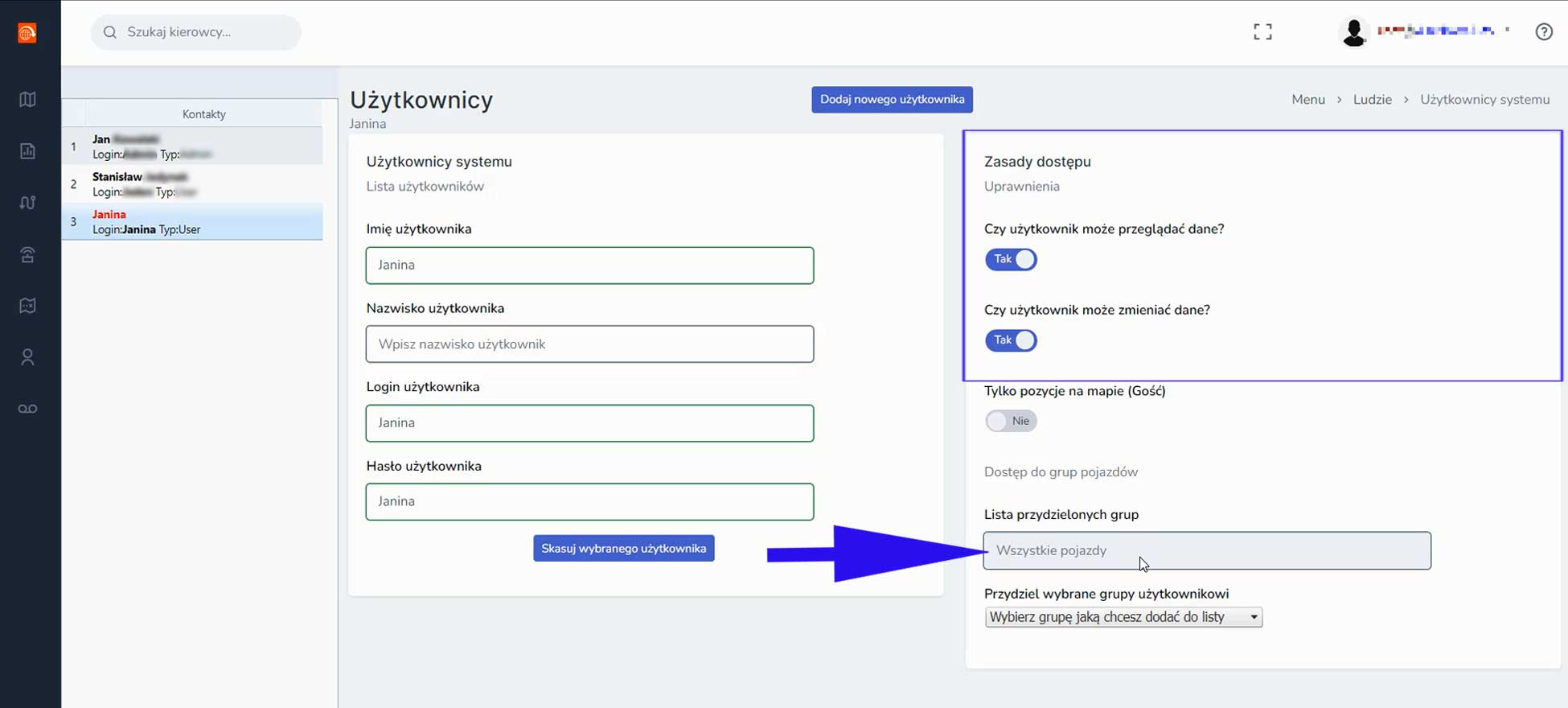
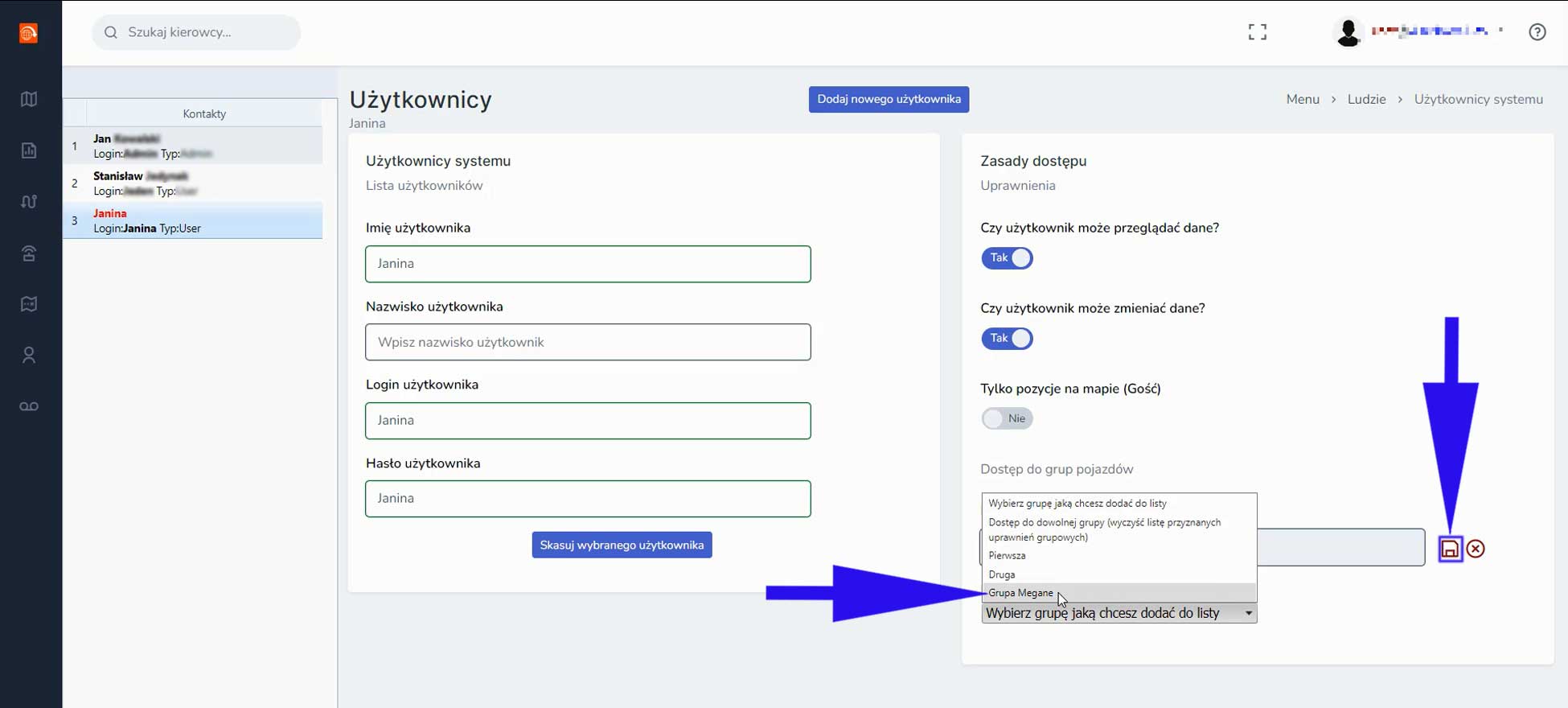
It is important to note that you can restrict access to groups by selecting only the group you wish to make available to the User from the list. Finally, you must save your selection by clicking the "save" icon on the right side of the vehicle group access section.
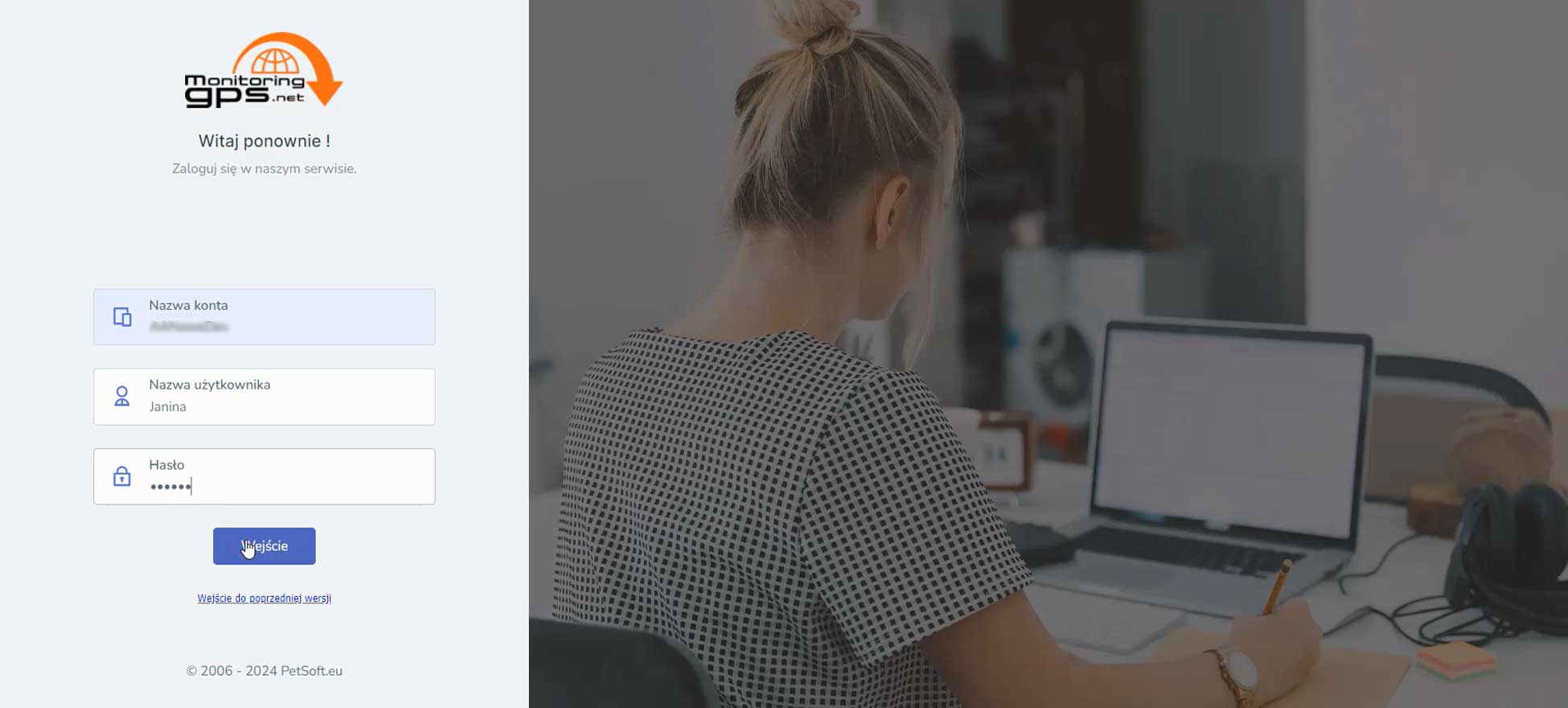
The new User can now log in by entering the assigned "Username" and password in the relevant fields.
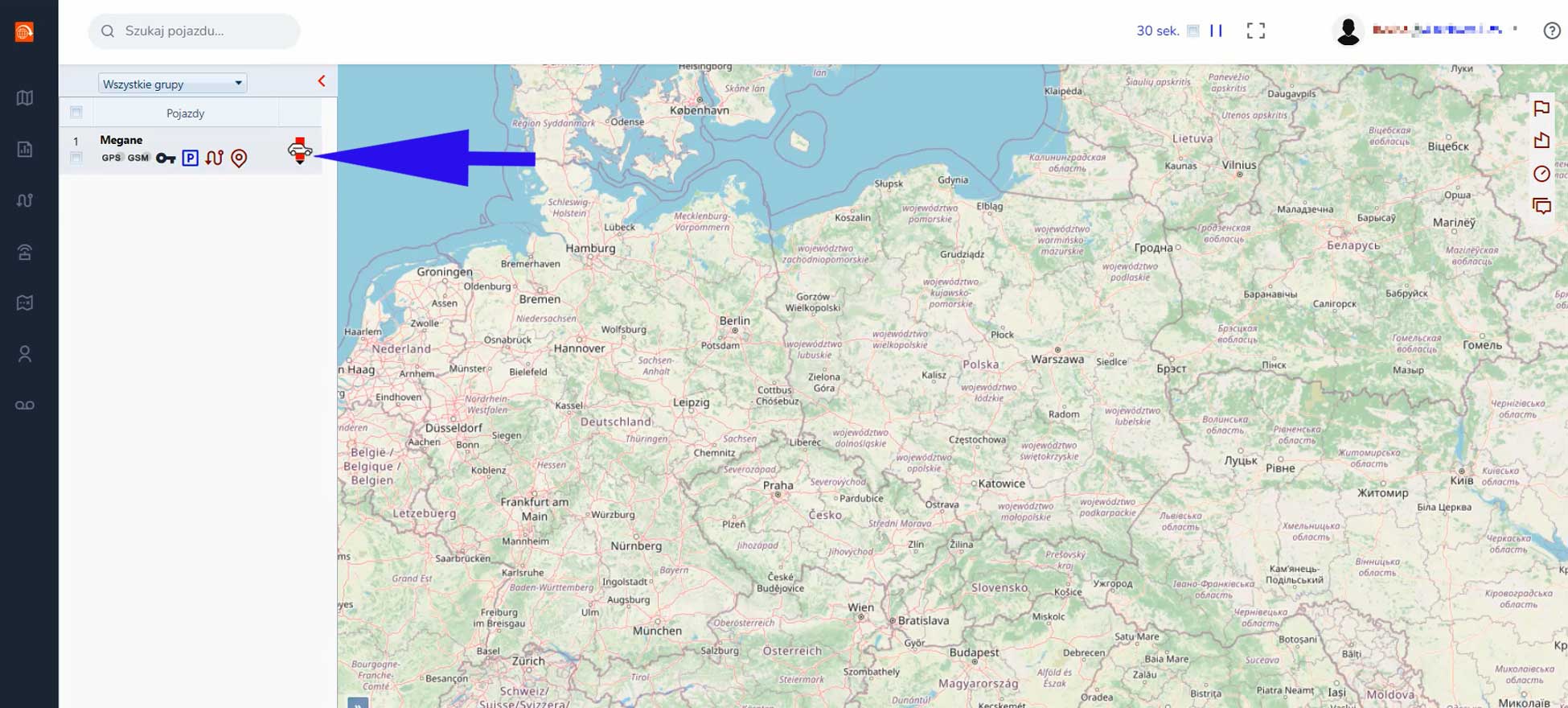
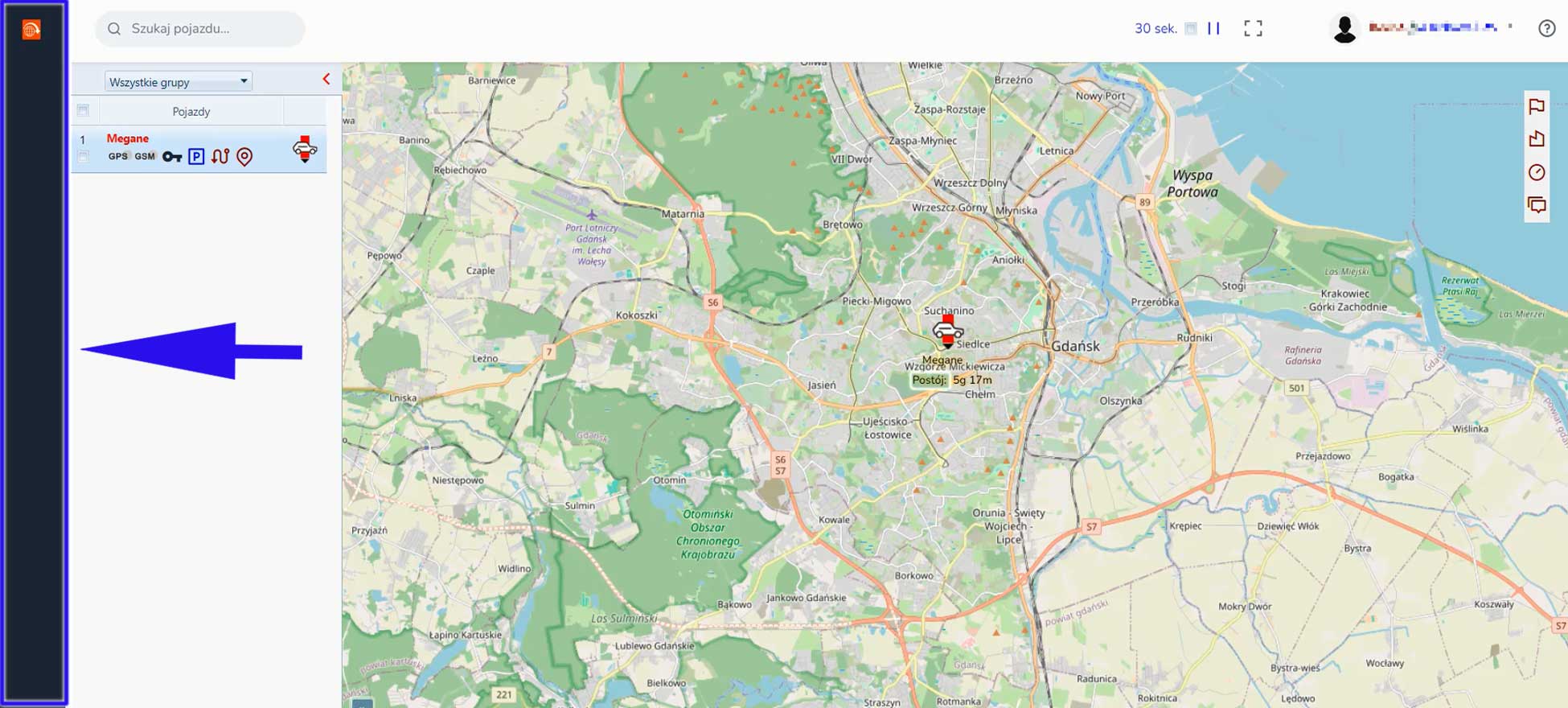
After logging in, you will see that the User has access to only one vehicle. They can only see the vehicle displayed on the list on the left. They also have access to the full menu.
If you want to restrict the User's access to only the current position of the vehicle on the map, select the "Guest" ("Gość") option.
On the left side of the bar, the menu will not be displayed, which means there is no access to other information. All other functions are unavailable.
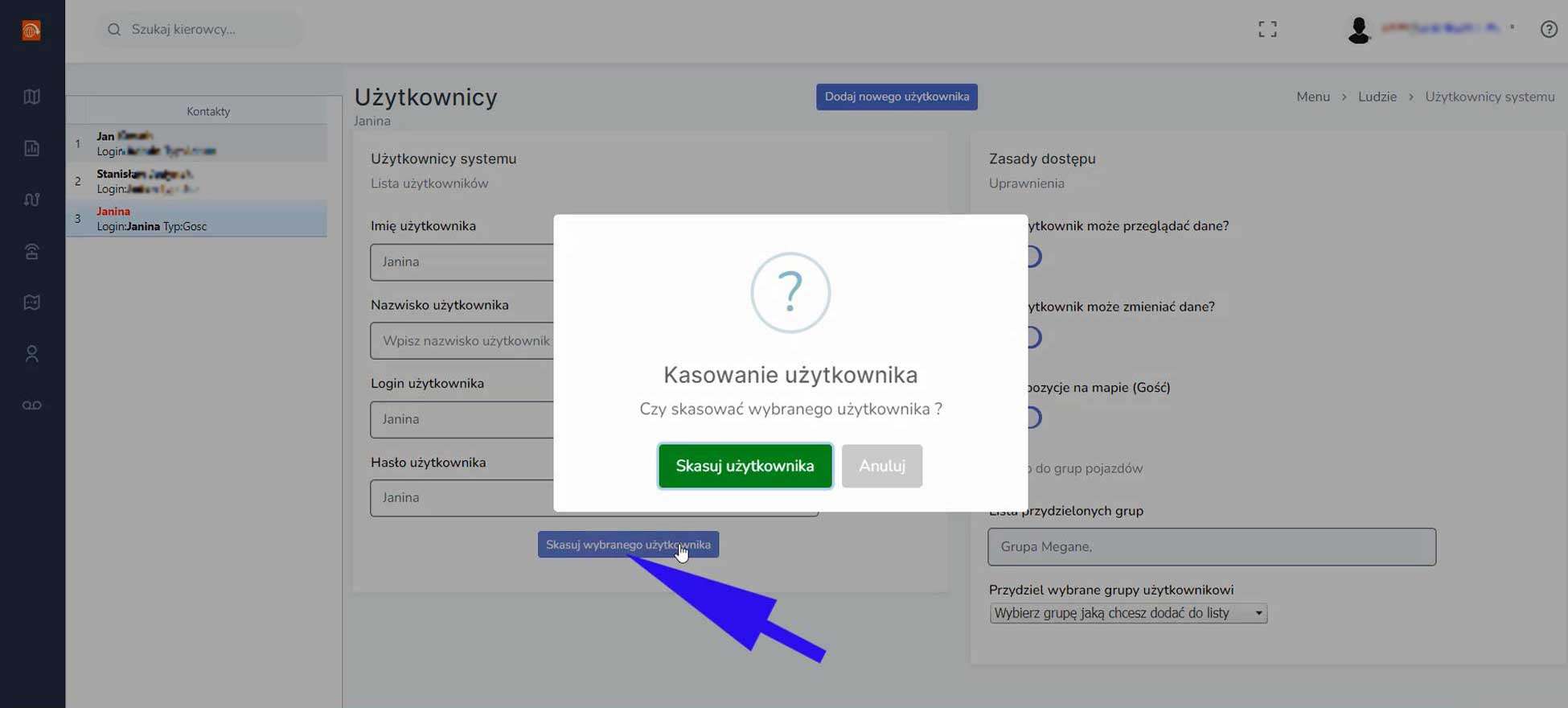
If necessary, the administrator can delete a person from the list of added Users.