
This description refers to the previous version of the application – the screens may look different from the current ones.
How to manage drivers and their vehicles within your fleet
An efficiently managed vehicle fleet is not just about the vehicles themselves. It is also about the drivers who operate them. In order to manage your fleet effectively using GPS tracking, you need to assign drivers to vehicles within the system. This enables better identification of issues and makes it easier to determine who is responsible for specific actions related to a vehicle. This article explains how to do this. First, you need to enter driver details into our database:
Log in to the system:
Menu > Objects > Drivers > Driver list
Here you will find the database of all drivers in your company.
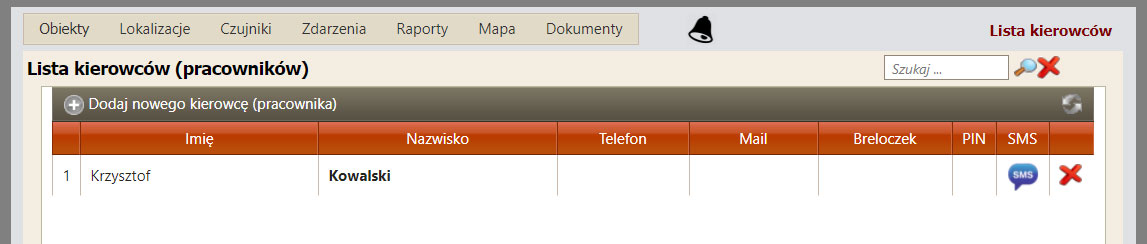
After navigating to the driver list page, you will see either a space for a new list or the list itself. To add your first driver, click the link "Add new driver (employee)" ("Dodaj nowego kierowcę (pracownika)"). Once you have done this, a form will open allowing you to enter new data.
The form includes:
- First name
- Surname
- E-mail
- Assigned contact
Please complete the required information.
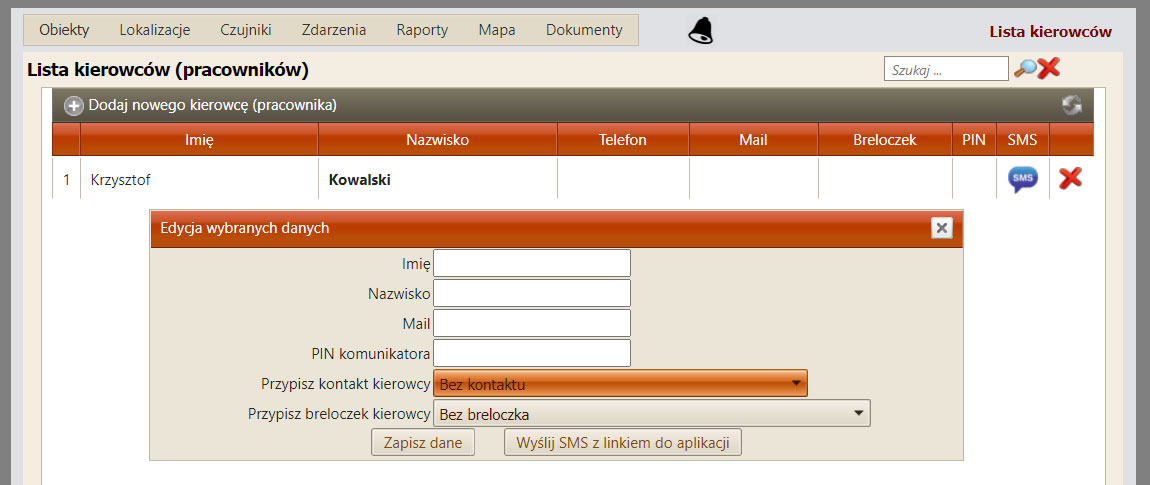
The data entered here will be displayed on vehicle lists in other parts of the system. This is a very useful feature, as it makes both vehicles and their responsible drivers visible. This allows for easier management of your vehicle fleet.
The "Assigned contact" ("Przypisany kontakt") field requires some explanation. In the drop-down list, only contacts with phone numbers are shown. Only this type of contact can be saved here. The reason is as follows: in many areas of the programme, there are forms that allow you to send SMS messages directly to drivers’ mobile phones. This is only possible if you have defined the appropriate contact and assigned it to the relevant driver. This is done in this part of the programme. Now, you need to assign drivers to specific vehicles. Once this operation is completed, driver details will be displayed under the vehicle data in various reports and lists.
To assign drivers to a specific vehicle, you need to:
Go to: Menu > Objects > Drivers > Assign drivers to objects
and open the "Driver list" ("Lista kierowców") and "Vehicle list" ("Lista pojazdów") tabs.
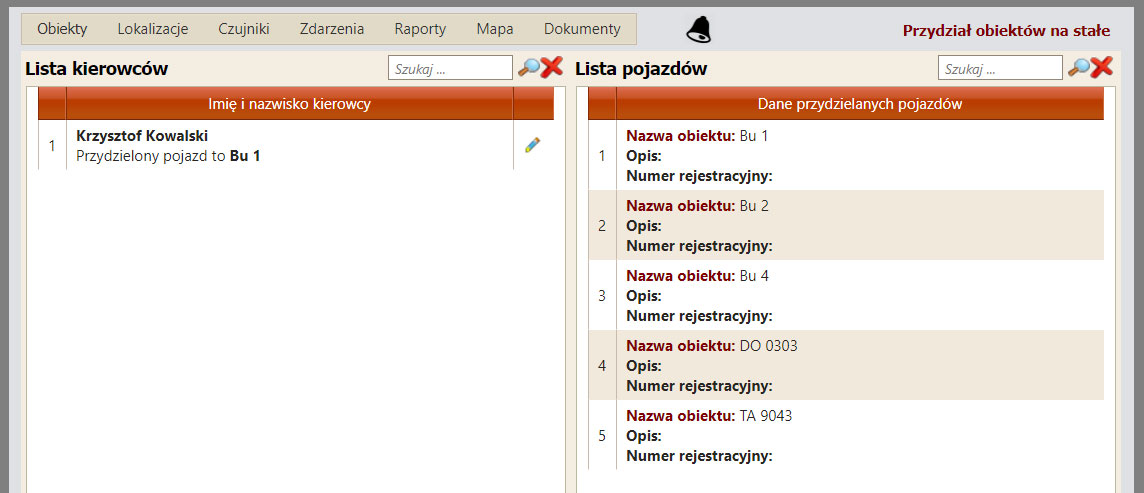
In the window used for assigning drivers to vehicles, there are two lists:
- The left list contains driver data and current assignments
- The right list contains the list of vehicles
To assign a driver to a vehicle, click the Edit icon  found in the left list. Then, in the edit window, select the assigned vehicle and the date from which the chosen driver is assigned to the indicated vehicle from the drop-down list.
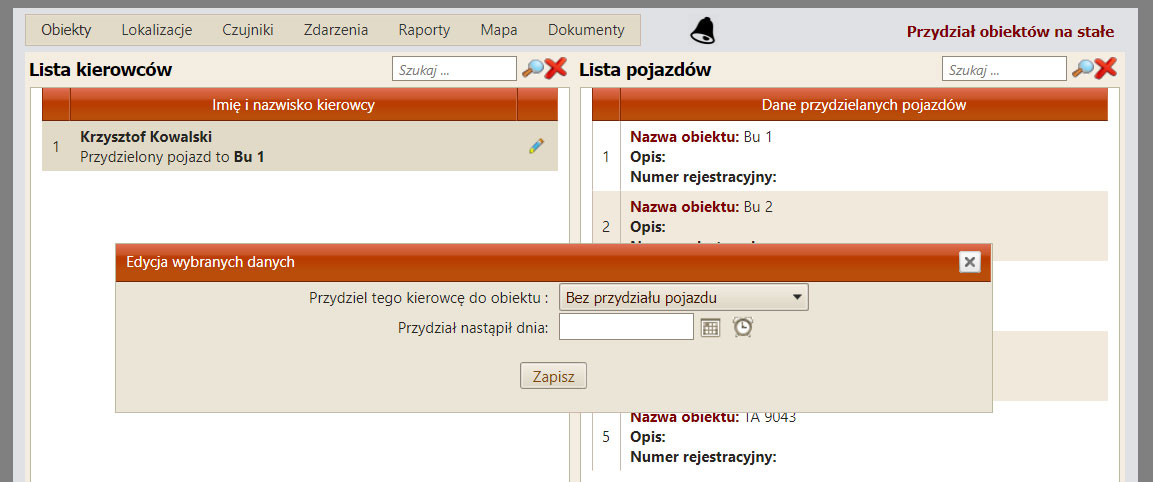
This is how you assign drivers to vehicles in the system.