
This description refers to the previous version of the application – the screens may look different from the current ones.
Cargo temperature sensors help maintain a pre-set temperature in the cargo area
The features enabling such analysis are included in our vehicle and fleet monitoring system. The functions described here can be implemented using the Standard Plus, CAN Plus, and CAN Plus Tacho trackers. Of course, to record temperature levels, a sensor is required. This must be ordered separately as a special option. The mL300-1p tracker, which is the basis of the "Monitoring Standard" kit, does not offer this function.
How does it work?
To check cargo temperatures, go to:
Menu > Sensors > Temperature and input measurement > Temperature and input measurement table (Menu > Czujniki > Pomiar tempratury i wejść > Tabela pomiarów temperatury i wejść)
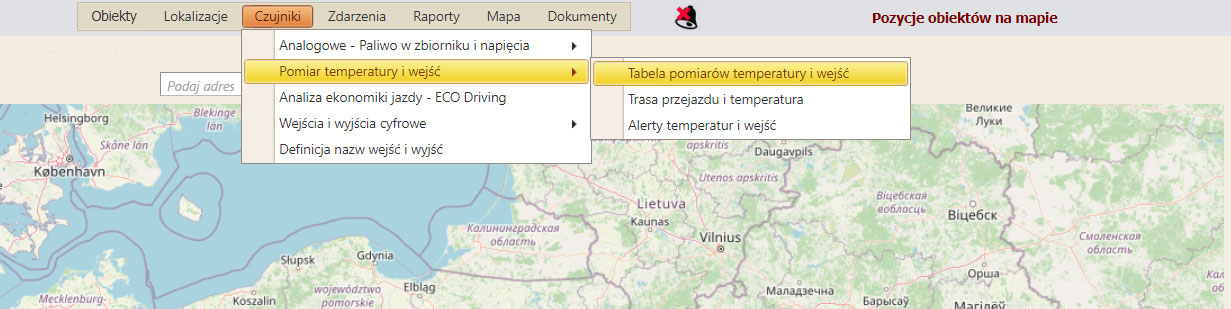
Once the tabs are opened, a table appears.

table - Temperature and input measurements
At the top of the table, fill in the selected fields:
1. Enter the time range to be included in the report
2. Select the input type – All inputs/Open/Closed
3. Select temperature measurement – All/Greater/Less/Within range
4. From the "object list", select the object (vehicle) from which you want to retrieve data
5. Press the "Show data" button

The table is now populated with data.
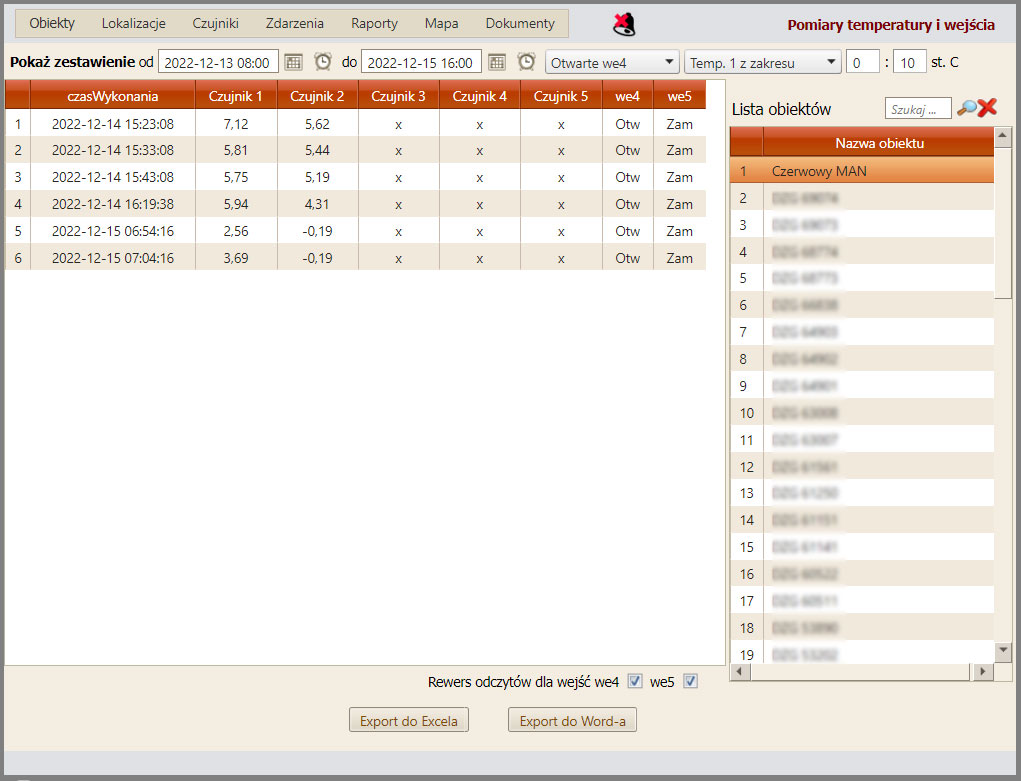
table - Temperature and input measurements
Setting new temperature and input alerts
To check cargo temperatures, go to:
Menu > Sensors > Temperature and input measurement > Temperature and input alerts (Menu > Czujniki > Pomiar tempratury i wejść > Alerty temperatur i wejść)
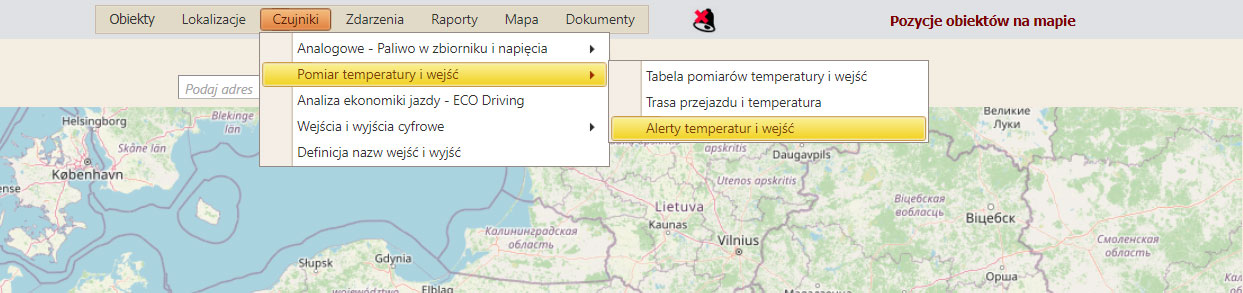
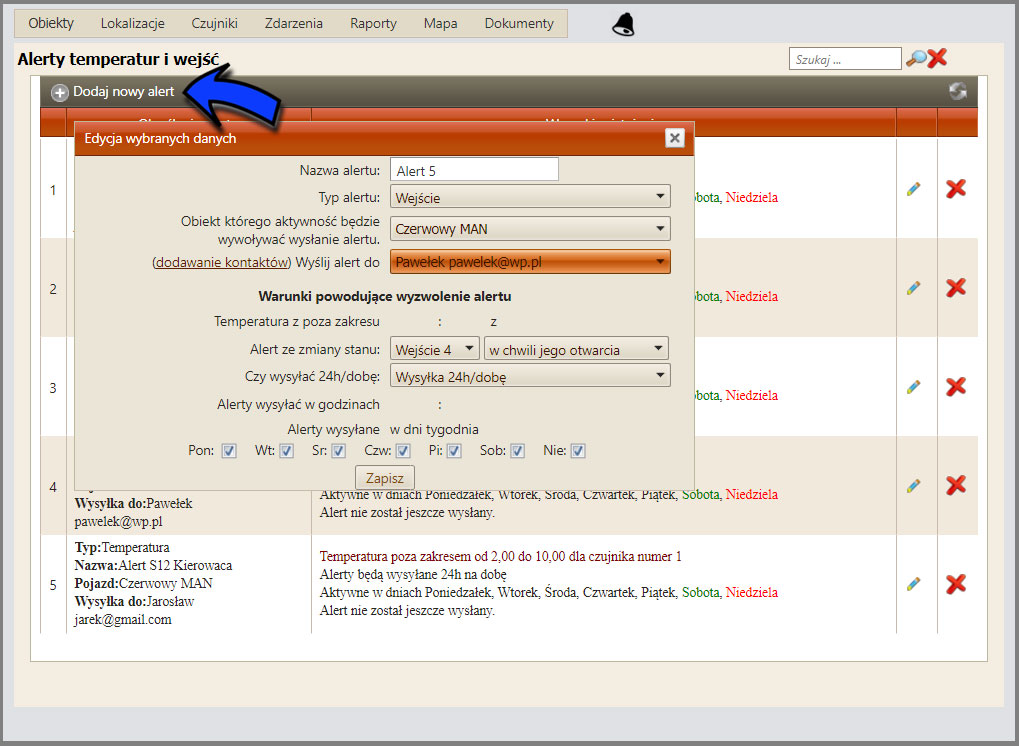
adding new temperature and input alerts
To add a new alert:
1. Click the cross "Add new alert"
(an edit window appears – "Edit selected data" ("Edycja wybranych danych"))
2. Here, fill in the following fields in order:
- alert name
- alert type: input/temperature/temperature sensor status
- object name (vehicle)
Conditions that trigger the alert
- temperature out of range
- alert on status change
- sending time 24/h or specified hours
- days of the week
Now click the "Save" icon to confirm your data selection.
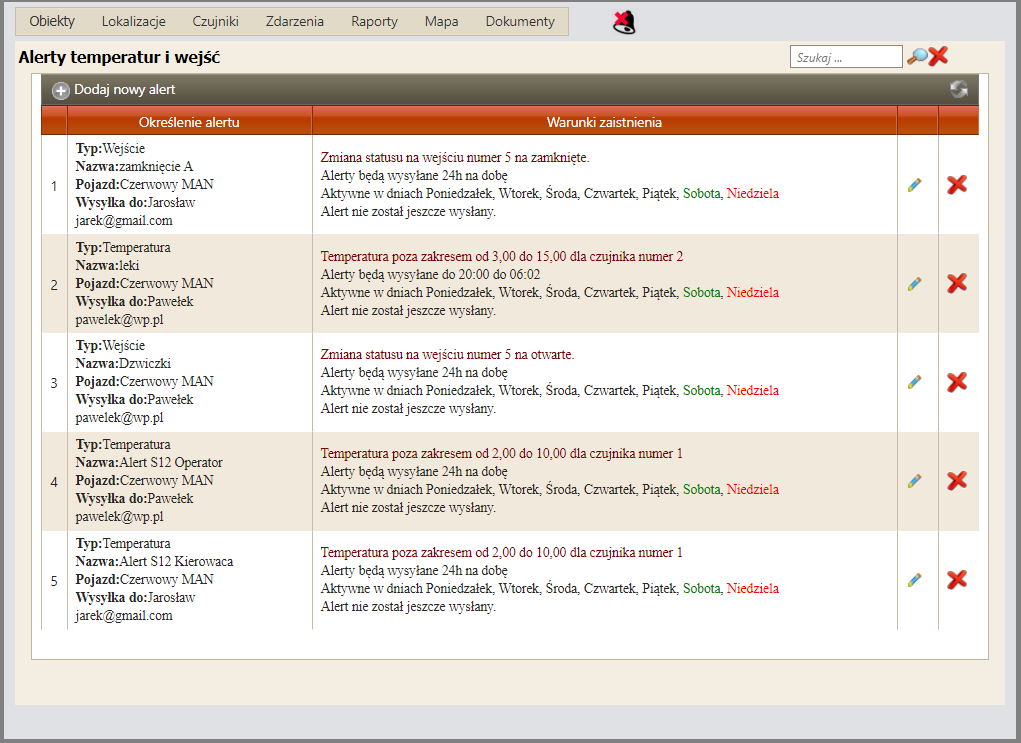
List of temperature and input alerts
You will now see a generated list of all alerts and data you wanted to retrieve. By clicking the Edit icon  you can modify the entered information. If you click the Delete icon
 you will completely remove the selected alert.