This description refers to the previous version of the application – the screens may look different from the current ones.
Driver speed analysis
Drivers of company vehicles, especially delivery and courier vans, are known for being in a hurry on the roads. This is evident almost everywhere. However, those responsible for transport within companies are increasingly paying more attention to what their employees are doing on the roads. This is often reflected in stickers on vehicles with the message "If I am driving too fast, call ....". Of course, this is only partially effective. Our vehicle monitoring software provides a powerful tool for managing this issue. This article shows how to carry out vehicle speed control. First, you need to set the maximum speed for the selected vehicle. This is the speed to which our system will refer.
To do this, go to:
Menu > Objects > GPS tracker configuration (Menu > Obiekty > Konfiguracja lokalizatorów GPS)
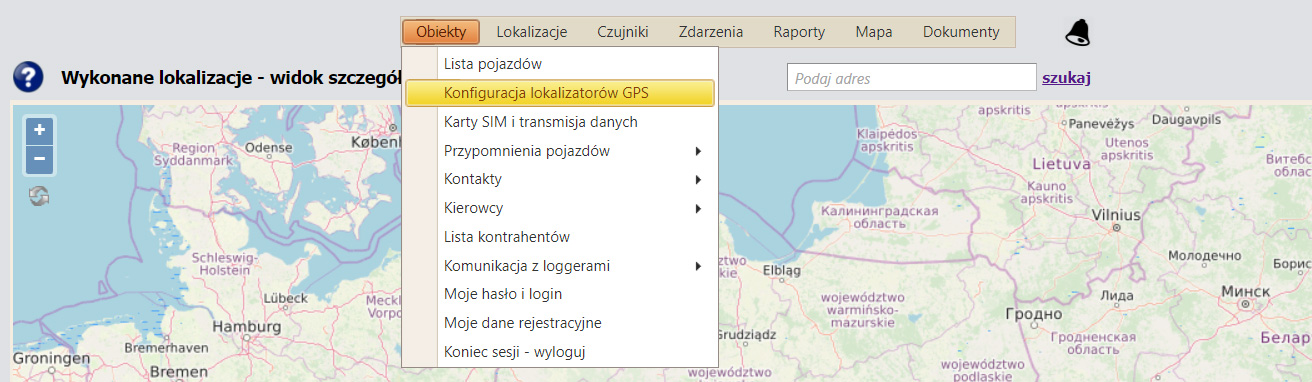
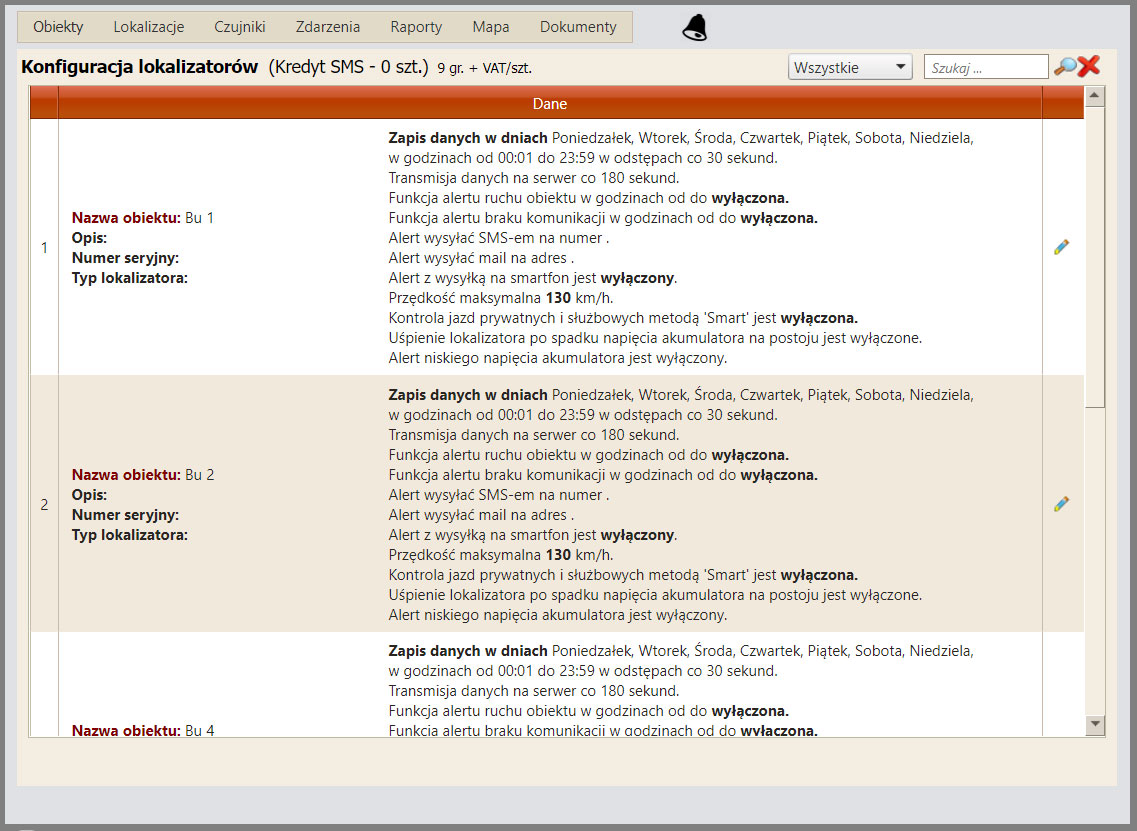
Here you will see a list of all objects registered in the system.
To set the maximum speed for a selected vehicle, click the edit icon  Edit in the row of the chosen vehicle.
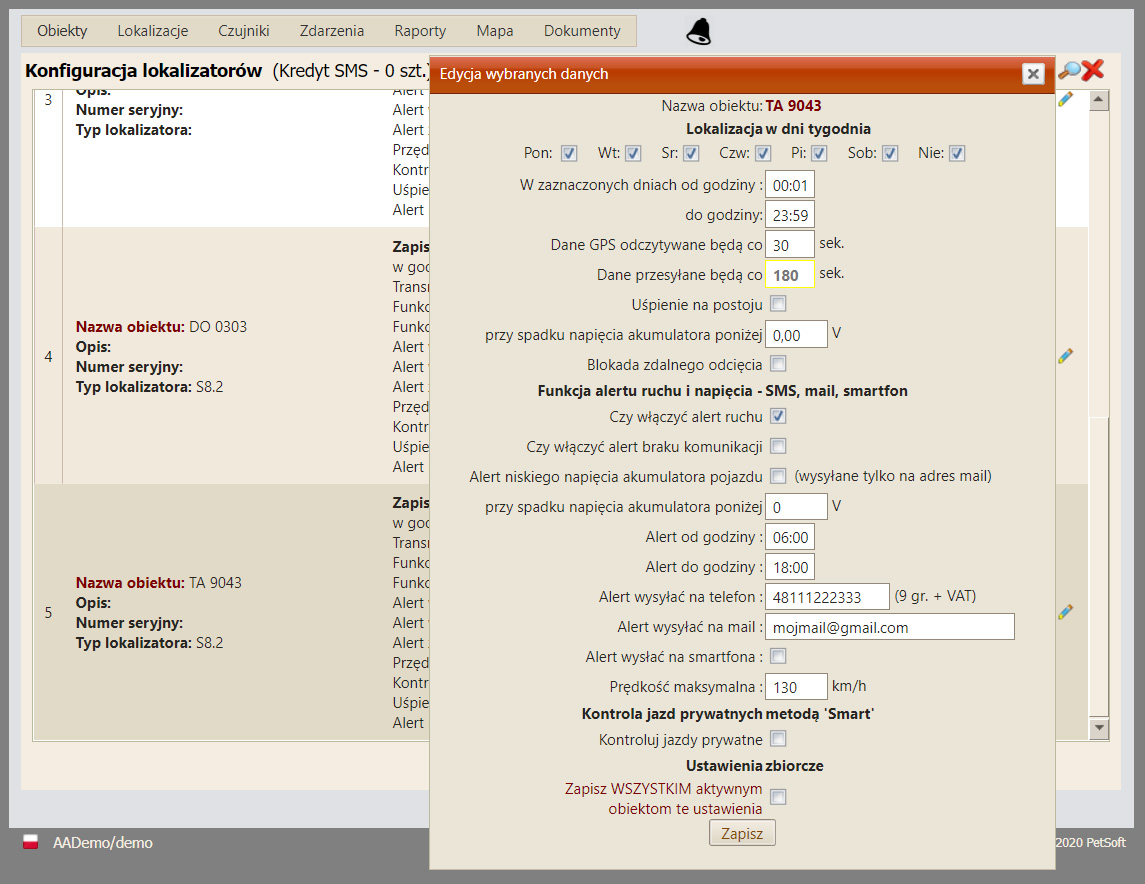
An edit window will appear. Find the field "Maximum speed" ("Prędkość maksymalna") and enter the appropriate value. Most often, for passenger cars and delivery vans, we enter 130 km/h. This way, you will be notified of any speed limit violations above the maximum speed allowed in Poland outside motorways.
After setting this speed, you need to go to another section of our Monitoring-GPS.net application.
Go to:
Menu > Events > Speed violations > On the map (Menu > Zdarzenia > Przekroczenia prędkości > Na mapie)
Here you will be able to analyse situations where speed violations occurred. 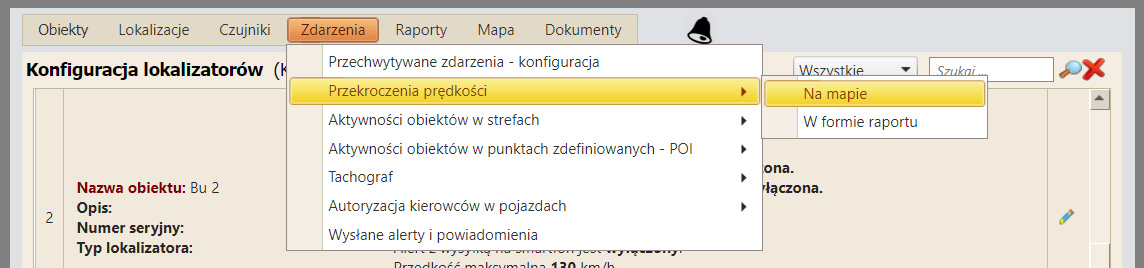
At this point, a screen appears with a clear map, time range controls, and a list of vehicles.
To download the data, you should:
- Select the time range
- Indicate the route sampling density
- Select the vehicle
- Download the data
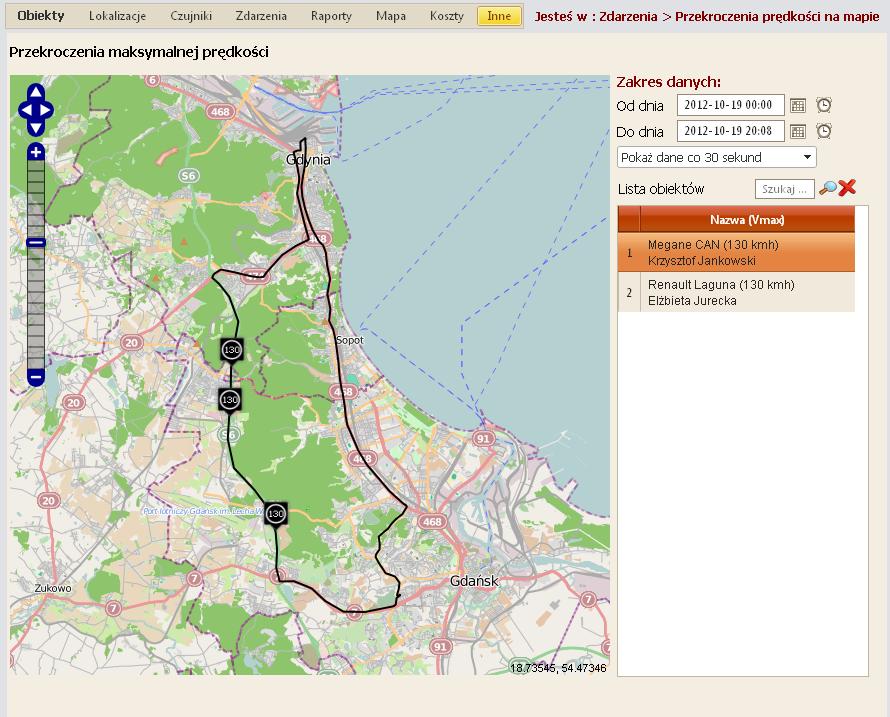
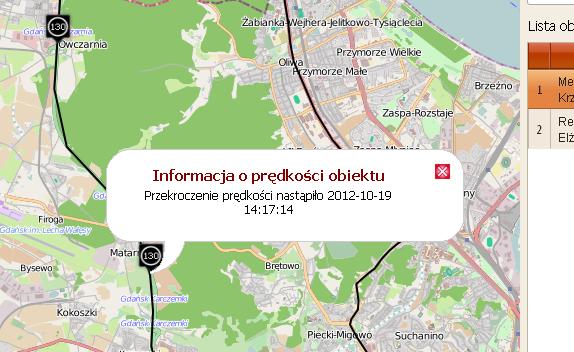
As shown in the image above, the tested vehicle exceeded the permitted speed 3 times. The map shows the point where the speed violation occurred. By clicking on the marker indicating the violation point, a bubble with detailed information will appear.